Multi-DJ Teams & Organizations
Team roles, invitations, gig assignment, conflict alerts, and shared templates.
Multi-DJ Agency Management & Team Rosters
GigState provides entertainment agencies, DJ collectives, and multi-operator businesses with the tools needed to manage a roster of performers, assign gigs, enforce quality standards through shared templates, and scale operations effortlessly.
1. Organizations & Team Hierarchy
Every multi-DJ team is structured around an Organization. Within an organization, users hold one of three distinct roles:
| Role | Capabilities | Restrictions |
|---|---|---|
| Owner | Full administrative control; manages billing, subscriptions, invoices, custom domains, and white-label branding; invites team members and sets roles; access to all gigs. | None. |
| Manager | Oversees day-to-day gig operations; assigns performing DJs; creates and publishes agency-wide timeline templates and planning forms; access to all gigs. | Cannot view or modify billing/subscription details or delete the organization. |
| DJ (Performer) | Full access to Day Mode, timeline editor, forms, and playlist drive exports for gigs assigned to them; sets personal working hours and availability. | Cannot view unassigned gigs, edit other DJs' timelines, or modify agency settings. |
2. Inviting & Managing Team Members
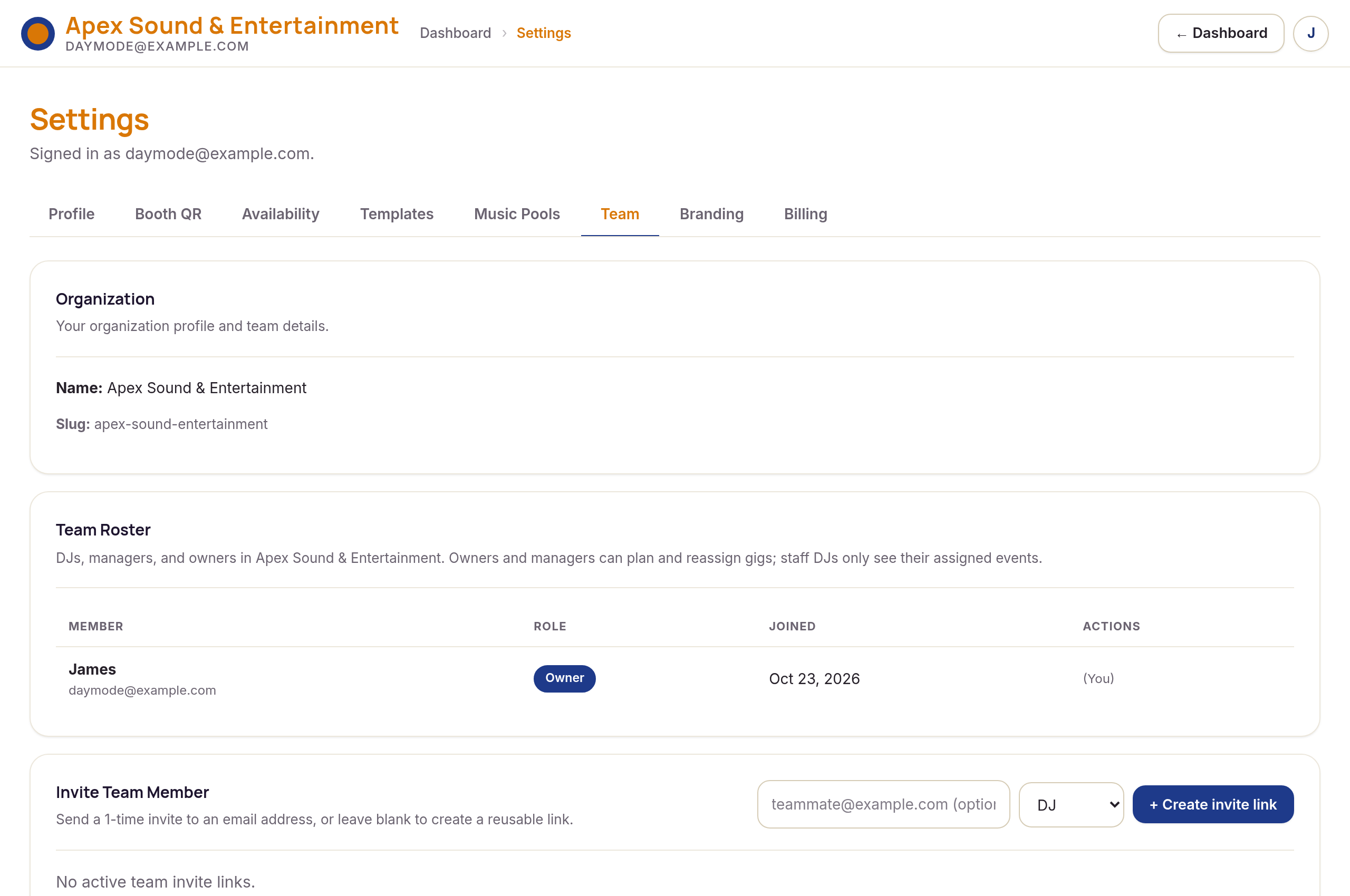
Managed under /settings?tab=team:
2.1 Sending Team Invites
- Navigate to
/settings?tab=team. - In the Invite Team Member section, enter the person's email address and select their role (
DJorManager). - Click Send Invite.
- GigState generates a secure invite token and dispatches an invitation email containing a direct registration link.
- If public registration is disabled on the platform, invite tokens still allow new staff to register and join your organization automatically.
2.2 Managing Existing Members
- Change Roles: Owners can promote a DJ to Manager or adjust permissions with a single click.
- Remove Member: If a contractor leaves your agency, removing them immediately revokes their access to all agency gigs and data.
- Seat Quotas: The maximum number of active team members is determined by your subscription plan tier (Solo allows 1 seat; Multi-Op and Agency plans scale with your roster size).
3. Gig Assignment & Conflict Tracking
Assigning the right DJ to the right gig is handled directly on the Event Hub (/events/:id):
3.1 Assigning a Performer
- Open the Event Hub for any event.
- In the event details header, click the Assigned DJ dropdown.
- Select any DJ on your team roster.
- The assigned DJ immediately sees the gig appear on their personal dashboard and calendar.
3.2 Automated Conflict Detection
Before committing an assignment, GigState verifies the DJ's schedule:
- Double-Booking Check: Checks if the DJ is already assigned to another gig on that date.
- Availability Check: Checks if the DJ has set a date blackout or vacation override.
- Conflict Warning: If a conflict exists, a red warning badge alerts the manager before the assignment is finalized.
4. Shared Agency Templates & Questionnaires
Enforce uniform service quality across all your company's performers using shared agency assets:
4.1 Agency Timeline Templates
- Perfect a 6-hour wedding or corporate gala timeline with precise milestones, scripts, and durations.
- When saving the template under
/events/:id/timeline, choose Scope: Organization. - All staff DJs will see this template under their "Agency Templates" menu when building timelines for their gigs.
4.2 Agency Questionnaires (/forms)
- Managers can build standardized questionnaires (e.g., "Premier DJs Wedding Questionnaire" or "Corporate AV Requirements").
- Mark the form as Organization-Wide.
- Staff DJs can assign this official questionnaire directly to their clients or clone it into their personal library for custom tweaks.
5. Team Reply-To Email Configuration
Under /settings?tab=team, configure your Team Reply-To Email:
- All automated client emails, planning reminders, and notification dispatches will use your company's official email (e.g.,
info@premierdjs.comorbookings@chicagoentertainment.com) as thereply-toaddress. - When clients reply to an automated notification, the email routes directly into your company's customer support or booking inbox.