Forms & WYSIWYG Form Builder
Drag-and-drop form canvas, palette components, field inspector, and logic rules.
Planning Forms & Visual WYSIWYG Form Builder
Planning questionnaires are essential for collecting crucial event logistics, bridal party names, ceremony music cues, and reception song requests. GigState includes a suite of battle-tested System Forms and an interactive, drag-and-drop WYSIWYG Form Builder (/forms) for creating custom questionnaires.
1. Built-in System Questionnaires
GigState provides 9 professionally curated system templates ready to assign immediately or clone into your custom library:
- Basic Event Information (Wedding Intake):
- Bride and groom names, contact phone, best day-of contact person.
- Event date and multi-location selection (Ceremony, Reception, After Party).
- Conditional venue names and addresses based on selected locations.
- Reception Music Planning:
- Must-Play songs (iTunes verified).
- Play-If-Possible songs.
- Do-Not-Play banned tracks list.
- Formal dances: First dance, Father-Daughter, Mother-Son, Anniversary dance.
- Cocktail and dinner genre preferences.
- Wedding Ceremony:
- Prelude, Processional, Bride Entrance, and Recessional song cues.
- Sound reinforcement requirements: Lapel microphones, handheld mics, reader cues.
- Corporate Event:
- Audio-visual requirements, keynote speakers, walk-up stingers, and background music style.
- Private Party:
- Guest of honor details, age range, milestone celebrations, and musical vibe.
- School Dance:
- Clean radio edits enforcement, chaperone contacts, student request policy, and lights-up time.
- Birthday Party:
- Birthday song timing, cake cutting, toasts, and decade favorites.
- Graduation Party:
- School alma mater, graduation year, slideshow music, and open dancing.
- Fundraiser Gala:
- Auctioneer sound cues, sponsor recognition, donation drive music, and dinner background.
2. The WYSIWYG Form Builder Interface
Accessed via /forms (DJ navigation bar) ➔ + New Form or by editing an existing form.
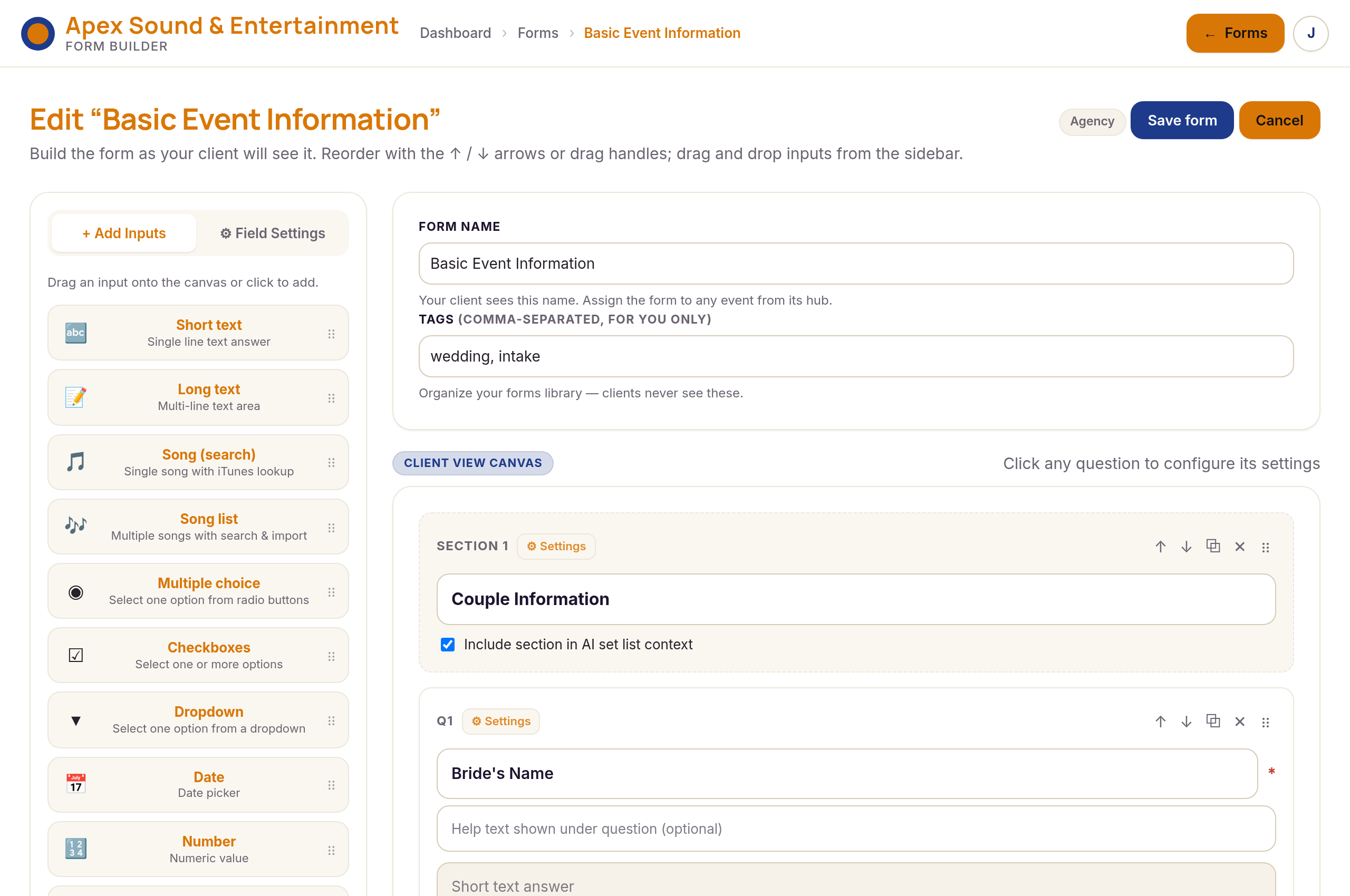
2.1 The Two-Column Layout
- Left Column (Live Canvas): Displays the form exactly as your client will experience it on their phone or desktop. You can reorder fields by dragging them up or down.
- Right Column (Palette & Inspector):
- Palette Tab: Contains all available input types ready to drag onto the canvas.
- Settings Tab (Field Inspector): Opens whenever a field is selected on the canvas, allowing you to fine-tune its label, validation, answer key, and logic rules.
3. Supported Form Components
| Component | Description | Common Use Case |
|---|---|---|
| Text | Single-line text input | Names, phone numbers, contact info |
| Textarea | Multi-line expandable text area | Venue addresses, announcements, notes |
| Dropdown (Select) | Single-selection dropdown menu | Primary music genre, meal type |
| Multiple Choice (Radios) | Radio button group | Yes/No questions, timing choices |
| Checkboxes | Multi-selection checkboxes | Location options (Ceremony, Reception, After Party) |
| Star Rating / Number | 1-5 star rating or numeric input | Guest count, wedding party size |
| Date & Time | Calendar date picker or time input | Start time, curfew, vendor arrival |
| Section Divider | Visual divider with heading | Grouping related questions (e.g., "Ceremony Music") |
| Song Search | Single track search with iTunes autocomplete | First Dance song, Grand Entrance song |
| Song List | Multi-song collection with iTunes search & max count | Must-Play and Do-Not-Play lists |
4. The Field Settings Inspector
Clicking any field on the canvas opens its settings in the right-hand panel:
- Label & Help Text: Edit the user-facing question text and provide explanatory instructions (e.g., "Include artist name or version if known").
- Required Field Toggle: When enabled, the client cannot mark the questionnaire completed until an answer is provided.
- Answer Key: The internal identifier (e.g.,
cake_cutting_song). Used when syncing answers into the timeline or feeding the AI set list generator. - Option List Management: For Dropdown, Radio, and Checkbox fields, easily add, edit, or delete selectable choices.
- Max Song Limit (
max_songs): For Song List components, specify a maximum allowable number of songs (e.g., limit Must-Play songs to 15 to keep the set list realistic).
4.1 Conditional Visibility ("Show Only If")
Conditional logic allows you to keep forms clean by hiding irrelevant questions until needed:
- Condition Rule:
Show this field only if [Question] [Operator] [Value] - Supported Operators:
equals(exact match)not_equals(any value other than specified)contains(substring match or checkbox selection)- Example:
- Question 1: "Do you plan to have a Bouquet Toss?" (Dropdown: Yes / No)
- Question 2: "Bouquet Toss Song" (Song Search) ➔ Set condition:
bouquet_toss equals Yes. - Question 2 remains hidden until the client selects "Yes".
5. Assigning Forms & Client Completion
Assigning to an Event
- Open the Event Hub (
/events/:id). - Scroll to the Planning Forms section and click Assign Form.
- Choose one or more forms from your library.
- Assigned forms appear immediately in the client's portal. You can "trickle" forms in over time as planning progresses.
The Client Experience (/c/:client_token/forms/:slug)
- Clients access forms through their shared event link with no login required.
- Draft Auto-Saving: As clients type answers or search songs, their responses save automatically in the background.
- Validation & Submission: When finished, the client clicks Mark as Completed.
- Progress Tracking: Both the DJ and client can see form completion status (
Not Started,In Progress,Completed) on the Event Hub.
6. Shared Agency Questionnaires
For multi-DJ agencies and entertainment companies:
- Agency-Wide Forms: Organization owners and managers can create official company questionnaires available to all DJs on the team.
- Consistency: Guarantees that every DJ under your brand collects standardized logistics and music details.
- Cloning & Customization: Staff DJs can assign official agency forms directly or clone them to create personalized variations.