Playlists & USB Drive Export
Harmonic AI setlists, record pool search, and in-browser USB file matching.
Playlists, AI Set Lists & Hardware USB Drive Export
A major pain point for professional DJs is bridging the gap between client planning questionnaires and actual DJ performance software. Transferring 50 song titles from an email or PDF into Serato, Rekordbox, or Traktor manually can take hours.
GigState automates this entirely: it generates harmonically mixable set lists using AI, matches tracks against your actual music drive, searches your record pools for missing songs, and writes ready-to-play crates and playlists directly onto your USB drive.
1. The AI Set List Generator (Beta)
Accessed via /events/:id/setlist (DJ only).
Beta Feature: The AI Set List Generator is an experimental assistant that models harmonic key progression and client preferences from questionnaires and timeline moments. Always review and audition tracks before live performance.
[Timeline Milestones] + [Questionnaire Answers] ➔ [AI Context Engine] ➔ [Harmonic Set List with BPM & Key]1.1 Context Extraction
When you click Generate Set, GigState analyzes:
- Event Type & Vibe: Wedding, corporate event, high school prom, or private party.
- Timeline Moments: Cocktail hour, dinner, grand entrance, first dance, cake cutting, peak open dancing, and last call.
- Questionnaire Answers: The client's favorite genres, must-play tracks, play-if-possible selections, and banned do-not-play songs.
1.2 Harmonic Mixing Data
Every generated song is verified against the iTunes catalog and annotated with:
- Camelot Harmonic Key (e.g.,
8Afor A minor,11Bfor A major). - Tempo (BPM) (e.g.,
124 BPM). - Energy Level & Genre.
- Section Categorization: Grouped into functional sets (e.g., "Cocktail Background", "Dinner Acoustics", "Peak Dancefloor Bangers").
1.3 Interactive Review & Export
- Add Tracks: Use the live iTunes search bar to add custom songs to any section.
- Remove Tracks: Tap the trash icon on any suggestion you do not wish to play.
- Include in Export: Check "Include in Drive Export" to automatically pipe all approved AI setlist tracks directly into your USB playlists.
2. The Playlists Hub (/events/:id/playlists)
The Playlists Hub organizes an event's music into four primary lists:
- Must Play: High-priority client tracks from questionnaires.
- Timeline Moments: Songs explicitly tied to timeline milestones (e.g., ceremony prelude, first dance, parent dances).
- Do Not Play: Banned tracks and blacklist artists to avoid.
- Guest Requests: Songs submitted by guests via the QR portal.
- AI Set List: Curated recommendations generated by the AI engine.
3. Title-Only Direct Downloads
If you prefer to download playlist files and relink them manually inside your DJ software, GigState provides immediate downloads in every major format:
| Format | Output File | Compatible Software |
|---|---|---|
| CSV Spreadsheet | <Event>.csv | Microsoft Excel, Google Sheets, Notion |
| Extended M3U | <Event>.m3u | VLC, iTunes / Apple Music, Winamp |
| Pioneer Rekordbox XML | <Event>_rekordbox.xml | Pioneer CDJs, XDJ-XZ, Rekordbox 6 & 7 |
| Traktor Pro NML | <Event>_traktor.nml | Native Instruments Traktor Pro 3 & 4 |
| VirtualDJ Database XML | <Event>_virtualdj.xml | Atomix VirtualDJ 2024 / 2025 |
| Denon Engine DJ XML | <Event>_engine.xml | Denon Prime 4, SC6000, Engine OS |
4. Direct-to-Drive Browser Export (USB Matching)
This is GigState's superpower: using the browser's native File System Access API (Chrome, Edge, Opera), the app can directly scan your physical music drive and write native crates and playlists with zero file uploading.
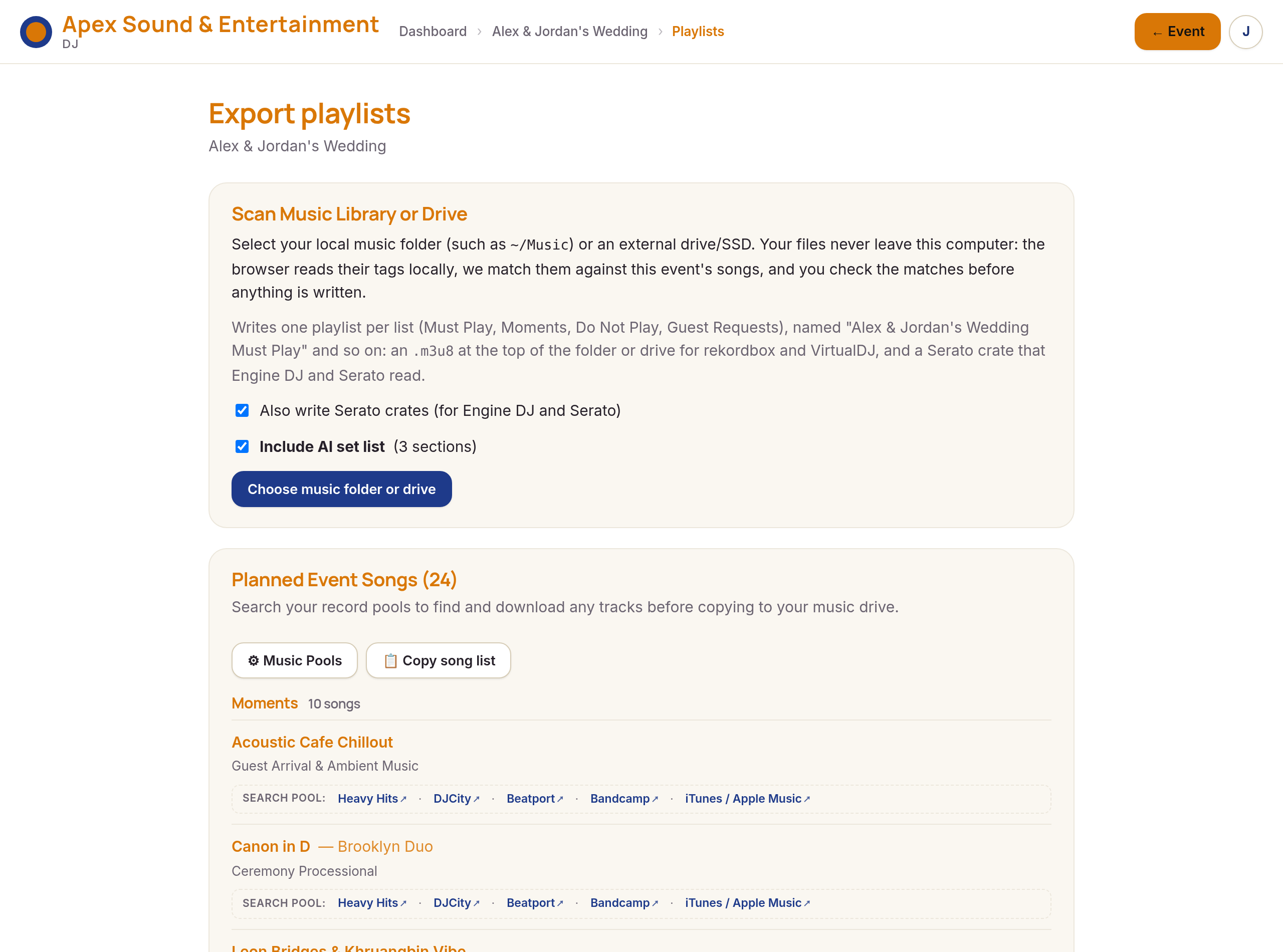
Step-by-Step Walkthrough
- Connect Your USB Drive: Plug your flash drive or external DJ drive into your laptop.
- Launch Drive Export: On
/events/:id/playlists, click "Export to a drive". - Select Folder: When prompted by your browser, pick the root folder containing your music library (e.g.,
D:\Musicor/Volumes/DJ_USB/Tracks). - Local Tag Scanning:
- The browser scans your drive locally.
- It parses metadata (artist, title, album, duration) for MP3, M4A, AAC, FLAC, and WAV files.
- Security Note: No audio files are transmitted over the internet; the scan happens 100% inside your local browser sandbox.
- Reviewing Matches:
- Exact Matches (Green): High-confidence matches found on your drive.
- Fuzzy Matches (Yellow): Suggests close matches (e.g., "Earth, Wind & Fire - September (Radio Edit)" vs "September").
- Missing Tracks (Red): Songs requested by the client that are not currently in your library.
5. Integrated Record Pool Deep Search
When a client requests a rare track or a fresh release that you do not own, GigState lets you search your record pools with a single click:
Supported Record Pools
Configure your active subscriptions under /settings?tab=pools:
- BPM Supreme
- ZipDJ
- Crate Connect
- Heavy Hits
- Franchise Record Pool
- Club Killers
- Direct Music Service (DMS)
- Custom URL Templates: Add your own favorite pool or record store using the
{query}template (e.g.,https://www.beatport.com/search?q={query}).
One-Click Search Flow
- In the Drive Export review screen, click the search icon next to any missing song.
- Select your record pool.
- GigState immediately opens the pool's search results for that exact artist and title, allowing you to download the track in seconds and drop it onto your drive.
6. Native Files Written to Your Drive
When you click Write Playlists, GigState writes the following files directly onto your drive:
- Universal Playlists (
.m3u8): <Event> Must Play.m3u8<Event> Timeline Moments.m3u8<Event> Guest Requests.m3u8<Event> AI Set List.m3u8- Written to the drive root, ready for VirtualDJ, Rekordbox, or VLC.
- Serato & Engine DJ Subcrates (
.crate): - Saved inside
_Serato_/Subcrates/on your drive. - Instantly recognized by Serato DJ Pro and Denon Engine OS standalone hardware (Prime 4, SC-Live) as native subcrates!
- Pioneer Rekordbox Collection XML:
- If selected, writes an
<Event>.xmlfile with absolute volume paths (/Volumes/USB/...on Mac,E:\...on Windows) ready to import into Rekordbox.