Timeline Editor Deep Dive
Cascading durations, fixed time locks, live drag previews, and templates.
Deep Dive: The Timeline Editor
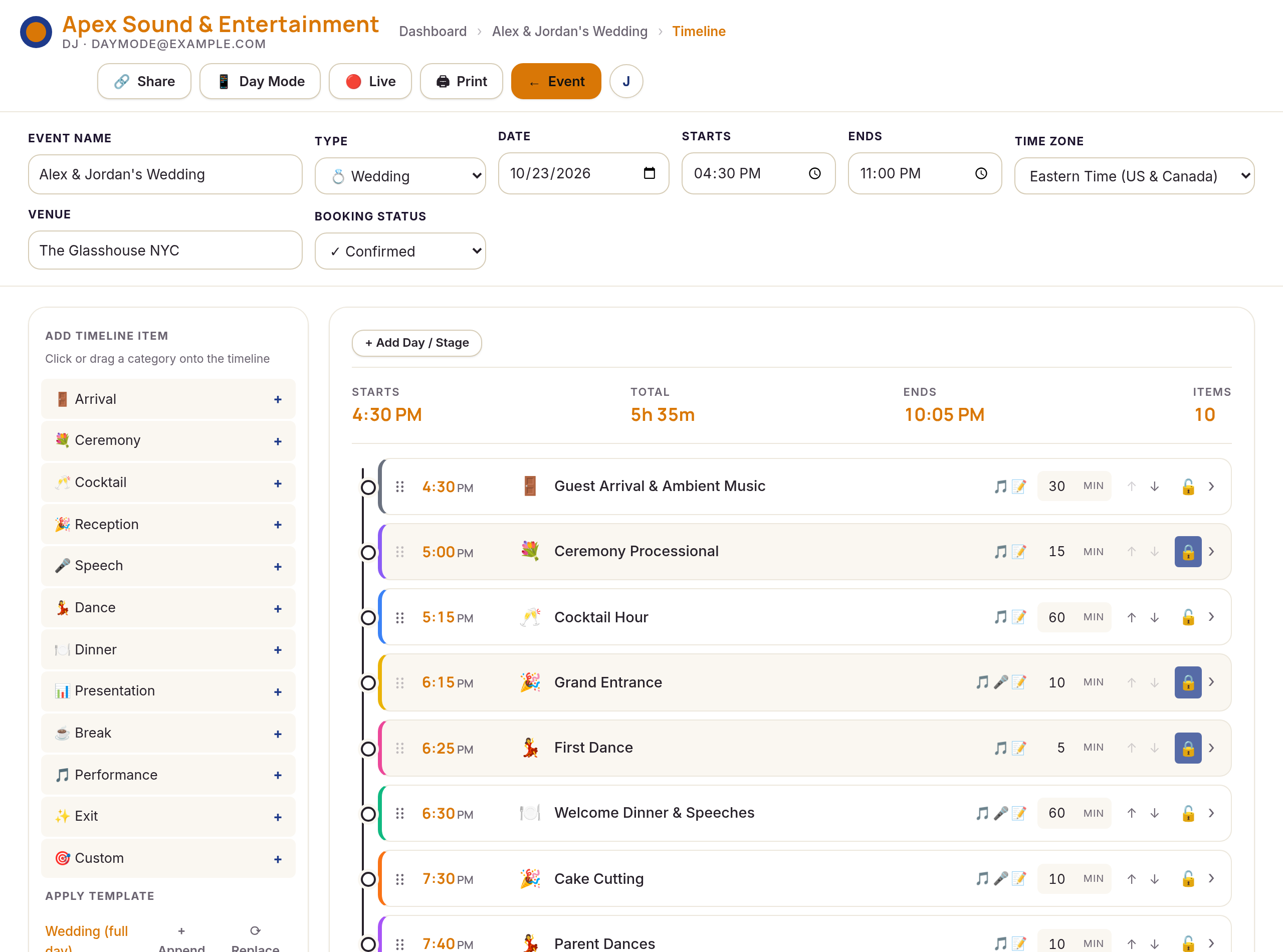
The Timeline Editor (/events/:id/timeline for DJs, /c/:token/timeline for Clients, /v/:token/timeline for Vendors) is the core planning engine of GigState. It combines spreadsheet-like precision with real-time multi-user collaboration and accessible interaction design.
1. The Cascading Time Model
Traditional planning spreadsheets require manually calculating start and end times for dozens of rows whenever a single 5-minute adjustment is made. GigState eliminates this entirely:
- Event Start Time: The event specifies a single root start time,
event.starts_at_time(e.g.,"16:00"for 4:00 PM). - Item Duration Only: Each
TimelineItemstores only its duration in minutes (duration_minutes). - Implicit Cascade: Start and end times are computed dynamically at render time by iterating over all items in
:positionorder and accumulating durations: - $$\text{Item Start Time} = \text{Event Start Time} + \sum_{i < \text{current}} \text{Duration}_i$$
- Dynamic Resizing: Changing an item from 30 minutes to 45 minutes immediately ripples down through every subsequent item in real time across all connected browsers.
2. Pinned Items: Fixed Time Locks
Occasionally, an event has non-negotiable hard milestones (e.g., "Caterer starts serving dinner at exactly 6:30 PM" or "Venue fireworks permit begins at 9:00 PM").
- The Lock Button (🔓 / 🔒): Clicking the lock icon on an item pins it to an exact clock time.
- Behavior: If earlier items run long or short, a locked milestone does not float. Instead, it holds its scheduled time.
- Visual Cue: Locked items display a distinct lock badge and timestamp indicator in both the editor and Day Mode.
3. Real-Time Collaboration & Attributions
GigState uses Phoenix LiveView and Phoenix PubSub to synchronize changes instantly across all devices without needing page reloads:
- Collaborator Presence: When multiple people open the timeline, circular avatar chips appear in the top-right header showing active editors.
- Live Drag Previews: When someone drags a row to reorder it, other collaborators see a live ghost placeholder tracking the movement in real time.
- Attribution Pills: Every item card displays a subtle pill showing who made the last change (e.g.,
"Last edit: Alex (Client) · 3m ago"). - Change History (
/events/:id/changes): DJs can view a chronological audit log of every modification made to the timeline, including which actor made the edit, the exact timestamp, and what fields were updated.
4. Item Anatomy & Data Fields
Each milestone card provides comprehensive fields for planning and performance:
| Field | Purpose | Visibility | Day Mode Display |
|---|---|---|---|
| Title | Name of the milestone (e.g., "First Dance") | DJ, Client, Vendor | Prominent header on Now card |
| Category | Categorizes the event moment (e.g., Ceremony, Reception, Dance) | DJ, Client, Vendor | Color strip and icon |
| Duration | Length in minutes | DJ, Client, Vendor | Used to compute timing |
| Public Description | Logistics, instructions, and participant notes | DJ, Client, Vendor | Secondary text block |
| Private DJ Notes | Internal DJ cues, sound equipment notes, or reminders | DJ Only | Highlighted private callout |
| Announcement Script | Exact words the MC or DJ will speak over the microphone | DJ, Client (Hidden from Vendor) | Large prompter text on Now card |
| Custom Color & Icon | Custom visual accent overrides | DJ, Client, Vendor | Card theme & icon |
5. Reordering & Editing Controls
Reordering Rows
- Mouse / Touch Drag: Click and drag the grip handle on the left edge of any item card. Release to commit the new order.
- Keyboard Navigation: For screen reader users or keyboard-only navigation, each card includes dedicated Up and Down move buttons (
move_item). Moving an item automatically shifts focus to maintain context.
Row Actions
- Insert (+): Hovering between any two rows reveals an insert button to add a new milestone at that exact location.
- Duplicate: Duplicates the item, copying title, category, duration, description, notes, and announcement scripts.
- Delete: Prompts a safety confirmation modal before removing the item from the schedule.
6. Templates & Reusability
Built-in Catalog Templates
GigState includes pre-configured, professionally timed templates for popular event types:
- Wedding (full day): 20 comprehensive milestones from Guest Arrival to Grand Exit.
- Corporate Event: Registration, Keynotes, Breaks, Lunch, Awards, Closing.
- Graduation Party: Toasts, Slideshow, Cake Cutting, Open Dancing.
- Birthday Party: Welcome, Dinner, Games, Birthday Song, Speeches.
- School Dance: Doors open, Announcements, Peak Dancing, Last Call.
- Fundraiser Gala: Silent Auction, Dinner, Live Auction, Presentation.
Applying Templates
Click Apply Template in the editor toolbar:
- Append Mode: Adds the template milestones to the end of your current schedule.
- Replace Mode: Clears all current items and replaces the timeline with the template.
Saving Custom & Agency Templates
- Save as Template: Once you have perfected a custom schedule, click Save Template.
- Personal vs Agency Scope: Organization owners and managers can designate templates as Agency Templates, making them instantly available to all team members.