Master User Guide
Comprehensive end-to-end user manual covering the entire platform.
GigState User Guide & Operations Manual
Welcome to GigState (https://gigstate.app) — the real-time collaborative event planning and live execution platform engineered specifically for DJs, entertainment agencies, event planners, venues, and clients.
This guide provides exhaustive, step-by-step documentation for every feature and workflow in the application. Whether you are a solo mobile DJ running a wedding from your phone, an agency owner managing a multi-DJ roster with white-label branding, a wedding planner building a run of show, or a guest requesting a song, this guide covers everything you need to know.
Table of Contents
- System Architecture & Philosophy
- User Roles & Security Model
- DJ Quick Start: Your First Event in 5 Minutes
- The Event Hub: Central Mission Control
- The Timeline Editor: Building the Run of Show
- Event Day Mode: Live Performance on Phone & Tablet
- Planning Forms & WYSIWYG Form Builder
- Guest Song Requests & DJ Digital Tipping
- AI Set List Generator (Beta)
- Playlists & Hardware / Software Drive Export
- Calendar & DJ Availability
- Multi-DJ Teams & Organization Management
- White-Label Branding & Custom Domains
- Subscriptions, Billing & Stripe Integration
- Print Sheets & PDF Runsheets
- Troubleshooting & Frequently Asked Questions
1. System Architecture & Philosophy
GigState was designed from the ground up around real-world DJ realities: noisy venues, spotty cellular networks, captive portals, last-minute schedule changes, and multiple stakeholders needing different levels of visibility.
Core Architectural Principles
- Zero Third-Party CDN Dependencies: All fonts (Inter, Manrope), scripts, and icons are self-hosted. If a venue has an isolated Wi-Fi network, captive portal, or poor internet, the application layout, typography, and controls will never break or hang waiting for an external CDN.
- Offline-First Day Mode: Day Mode (
/events/:id/day) caches its application shell (/__day_shell) and IndexedDB state (gigstate-day) locally. Once opened, you can execute an entire 6-hour wedding reception with zero cellular or Wi-Fi connectivity. - Real-Time Collaboration: Built on Phoenix LiveView, Phoenix PubSub, and Phoenix Presence. When a client modifies a song note or the DJ changes a duration, updates reflect across all connected devices in milliseconds with zero merge conflicts.
- Defensive Touch Layout: Day Mode uses rigid CSS variables and hardware-accelerated transforms (
transform: translateY) rather than box model layout recalculations, guaranteeing that touch gestures respond at 0ms and critical action buttons are never pushed offscreen. - Strict Role Boundaries: Three distinct share tokens (
dj_token,client_token,vendor_token) ensure clients can collaborate on planning without touching execution, while vendors receive read-only schedules that rigorously strip private DJ notes and questionnaire answers.
2. User Roles & Security Model
Every event has three independent, cryptographically secure 12-byte hex tokens, routing users to specific interfaces based on their role:
| Feature / Permission | DJ (Authenticated) | Client (/c/:token) | Vendor (/v/:token) | Guest (/r/:token) |
|---|---|---|---|---|
| Authentication Required | Yes (Email + Password) | No (Direct Link) | No (Direct Link) | No (Direct Link / QR) |
| Manage Event Settings & Dates | ✅ Yes | ❌ No | ❌ No | ❌ No |
| Edit Timeline Items & Durations | ✅ Yes | ✅ Yes | ❌ No (Read-Only) | ❌ No |
| Private DJ Notes (Internal) | ✅ Visible & Editable | ❌ Hidden | ❌ Strictly Stripped | ❌ Hidden |
| Announcement Scripts | ✅ Visible & Editable | ✅ Visible & Editable | ❌ Hidden | ❌ Hidden |
| Fill Planning Questionnaires | ✅ Yes | ✅ Yes | ❌ Strictly Stripped | ❌ No |
| Access Day Mode (Live Execution) | ✅ Yes (/day) | ❌ Redirected to Hub | ❌ No Route | ❌ No |
| Live Sync View (Crowd / Clock) | ✅ Yes (/live) | ✅ Yes (/live) | ✅ Yes (/live) | ❌ No |
| AI Set List Generation | ✅ Yes | ❌ No | ❌ No | ❌ No |
| USB Drive & Playlist Exports | ✅ Yes | ❌ No | ❌ No | ❌ No |
| Print Runsheets | ✅ Master Runsheet | ✅ Client Runsheet | ✅ Vendor Runsheet | ❌ No |
| Submit Song Requests & Tips | ✅ Review & Triage | ❌ Can View Link | ❌ No | ✅ Submit & Tip |
Share Link Expiration & Security
- Expiration Rule: Public share links (
/c/:client_tokenand/v/:vendor_token) and event song request links (/r/:event_token) remain active until the day after the event date at 23:59:59 UTC. Undated events never expire. - Revival: Updating an event's date automatically extends or revives the validity of its share links.
- Expired Links: Visiting an expired link redirects to
/unavailablewith a user-friendly message explaining the expiration. - Token Revocation: DJs and Organization Owners can immediately revoke and regenerate any share token from the Event Hub's Share Modal. Revoking a token instantly severs access for anyone possessing the old URL.
3. DJ Quick Start: Your First Event in 5 Minutes
Follow this quick guide to set up your first gig:
[Register / Sign In] ➔ [Create Event] ➔ [Apply Template] ➔ [Assign Questionnaire] ➔ [Share Link with Client]- Sign In: Navigate to
/loginand enter your credentials. - Create Event: On your Dashboard (
/dashboard), click + New Event. - Fill Event Details:
- Event Name: e.g., "Sarah & Michael's Wedding"
- Event Type: Choose from Wedding, Corporate, Graduation, Birthday, School Dance, Fundraiser, or Custom.
- Event Date & Start Time: Set the date and primary start time (e.g.,
16:00for 4:00 PM). - Location: Enter ceremony and reception venue names.
- Client Names & Contact: Enter client names and primary email/phone.
- Choose a Template: Select Apply Template (e.g., "Wedding (full day)"). This instantly populates your timeline with structured milestones (Arrival, Ceremony, Cocktail Hour, Grand Entrance, Dinner, Toasts, First Dance, Cake Cutting, Open Dancing, Grand Exit).
- Assign Planning Forms: From the Event Hub, click Assign Form and select "Reception Music Planning" and "Basic Event Information".
- Share with the Couple: Click Share in the header, copy the Client Link, and email or text it to your client. They can immediately open it on their phone or laptop with no account required!
4. The Event Hub: Central Mission Control
The Event Hub (/events/:id for DJs, /c/:token for Clients, /v/:token for Vendors) serves as the unified homepage for an event.
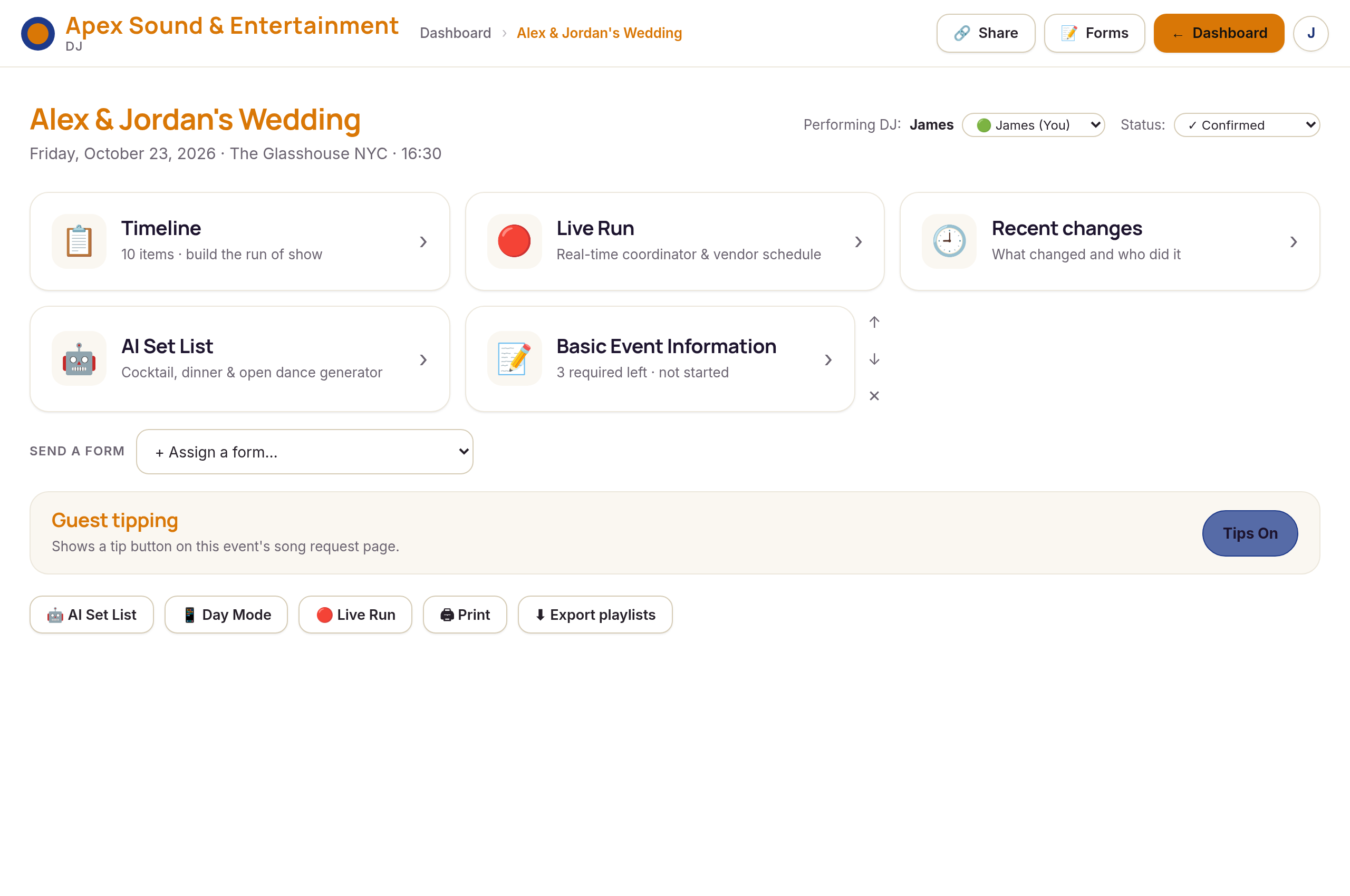
Key Hub Modules
- Event Metadata Card: Shows date, start time, calculated end time, venue, and assigned DJ.
- Timeline Summary: Direct shortcut to the Timeline Editor with an overview of total items and duration.
- Assigned Forms Deck: Lists all questionnaires attached to this gig. DJs can add new forms, reorder them, or remove them. Clients see clear progress tags (
Not Started,In Progress,Completed). - Live Sync Link: Direct access to
/live— a real-time countdown clock and current event milestone monitor for stage managers, caterers, and clients. - Quick Actions: One-click buttons to launch Day Mode, generate Print Sheets, access Playlists & Drive Export, generate AI Set Lists, or review the Change History.
5. The Timeline Editor: Building the Run of Show
Accessed via /events/:id/timeline (DJ) or /c/:token/timeline (Client).
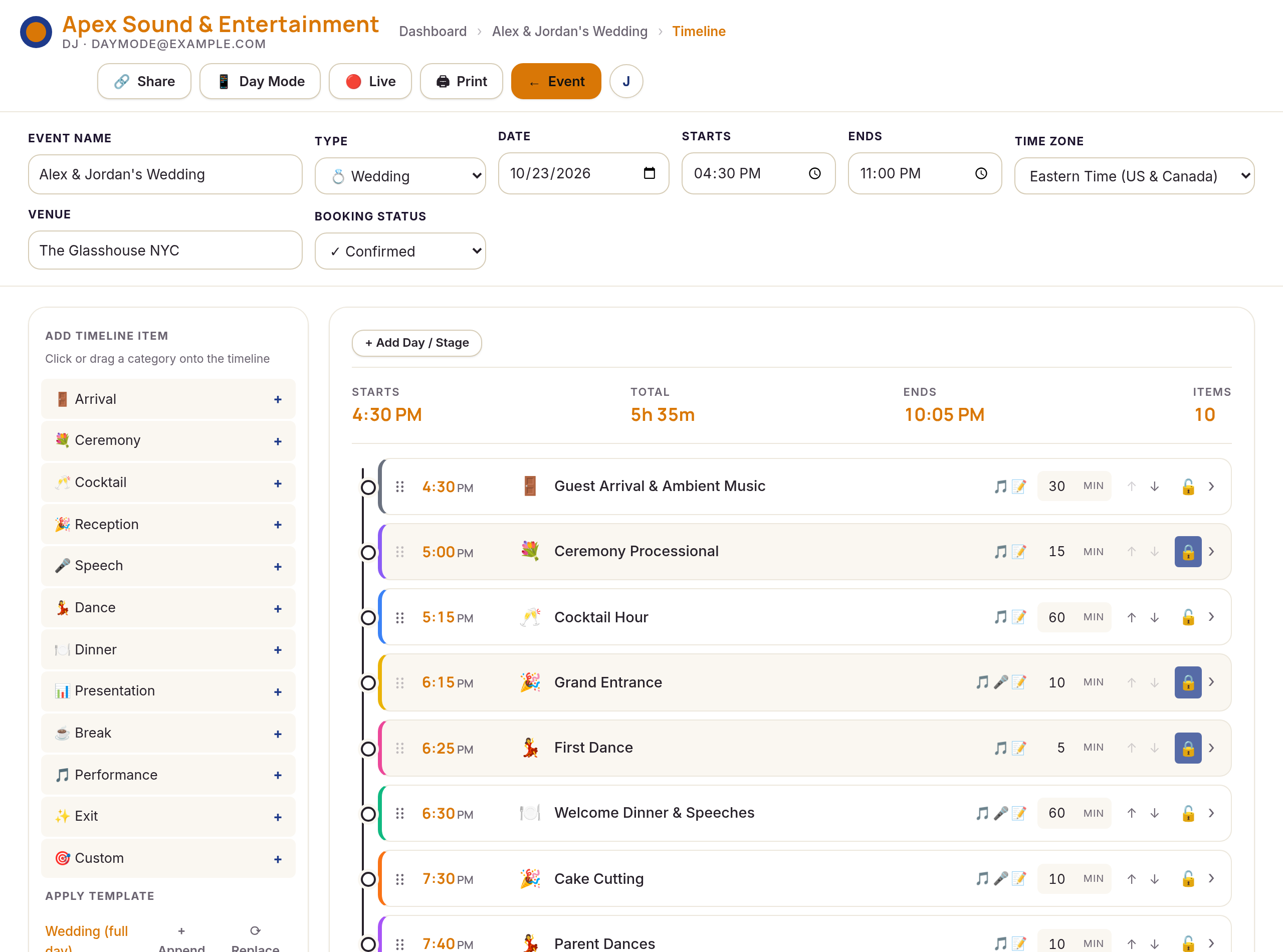
5.1 Real-Time Collaboration
The Timeline Editor allows multiple people (e.g., DJ, bride, groom, and wedding planner) to edit simultaneously:
- Presence Chips: Avatar chips in the header show who is currently viewing or editing the timeline.
- Live Drag Previews: When another collaborator drags an item to reorder it, a ghost preview reflects their movement in real time before they even release the mouse.
- Attribution Pills: Every item displays a subtle pill showing who edited it last (e.g.,
"Last edit: Sarah (Client) · 2m ago"). - Change History: Click History in the toolbar to inspect an audit log of every change, addition, and deletion.
5.2 Timeline Items & Attributes
Each milestone on the timeline contains rich metadata:
- Title: The display name of the milestone (e.g., "Grand Entrance").
- Category: Determines default icon and color palette (Arrival, Ceremony, Cocktail, Reception, Speech, Dance, Dinner, Presentation, Break, Performance, Exit, Custom).
- Duration: Duration in minutes. The start time of each subsequent item is automatically computed by accumulating durations from the event's
starts_at_time. - Locked Items (Fixed Time Locks): Clicking the lock icon pins an item to an exact clock time (e.g., "Dinner locked at 6:30 PM"). If earlier items run short or long, locked items hold their scheduled start time, adjusting surrounding transitions accordingly.
- Public Description & Notes: Notes visible to both the DJ and Client (e.g., "Bridal party enters in pairs; applause cue").
- Private DJ Notes: High-visibility yellow notepad section visible only to the DJ. Clients and vendors can never see these notes.
- Announcement Script: Exact word-for-word MC announcement text. Surfaced in Day Mode with enlarged typography for effortless microphone delivery.
- Custom Swatches: Override category defaults with custom emoji icons and hex colors.
5.3 Editing & Keyboard Controls
- Reorder: Drag using the grip handle or use the keyboard up/down buttons (
phx-click="move_item"). - Insert: Click the
+icon between any two rows to insert a new item at that exact sequence position. - Duplicate: Clones the item, its duration, script, and private notes directly below.
- Delete: Prompts a confirmation dialog before removing the item from the schedule.
5.4 Using Templates
- Built-in Templates: Choose from Wedding (full day), Corporate Event, Graduation Party, Birthday Party, School Dance, or Fundraiser.
- Agency Templates: Load custom templates created by your organization's management.
- Insertion Modes:
- Append: Appends the template milestones to the end of your existing timeline.
- Replace: Clears the current timeline and replaces it with the template.
- Save as Template: Save any completed timeline as a reusable template for future gigs.
6. Event Day Mode: Live Performance on Phone & Tablet
Accessed via /events/:id/day (DJ authenticated only).
Day Mode is designed for high-pressure, one-handed mobile operation behind the DJ booth or while roaming with a wireless mic.
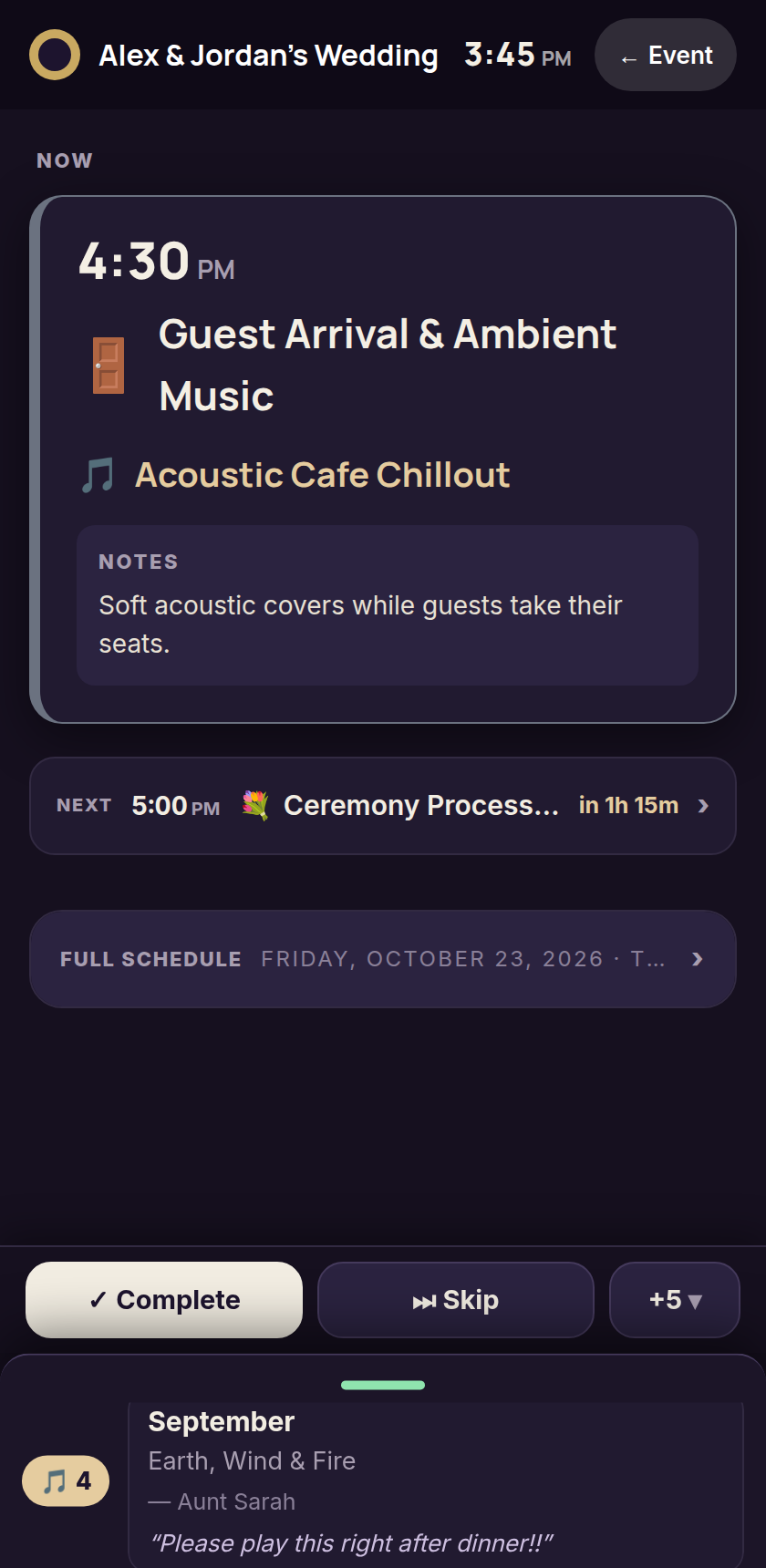
6.1 The Mobile Layout Contract
- Fixed Action Bar: Action buttons are anchored at the bottom of the screen (
.day-actionbar), ensuring critical controls never move or disappear. - Unobstructed "Now" Card: The currently active milestone remains front-and-center, displaying scheduled time, elapsed time, and the announcement script.
- Collapsible Sections: Future milestones beyond "Next" collapse into compact accordions to save screen real estate.
- Screen Wake Lock: Automatically activates the browser's Screen Wake Lock API to prevent your phone screen from dimming or locking during a gig.
- Vibration & Visual Transitions: Vibrates the phone and flashes visual cues when transitioning between timeline items.
6.2 Live Runtime Controls
- Mark Complete: Advances the timeline to the next item immediately.
- Skip: Bypasses the current item and moves straight to the next item.
- Runtime Delays (+5 / +10 / +15 min):
- Tapping
+5,+10, or+15applies a non-destructive runtime delay offset (delay_minutes). - Cascading Schedule: All remaining items automatically shift their projected start and end times forward on the fly.
- Non-Destructive: The original planned durations and schedule remain intact; the delay is an active runtime offset that can be increased, decreased, or cleared at any time.
6.3 Guest Song Request Sheet
The floating song request sheet sits at the bottom of the screen:
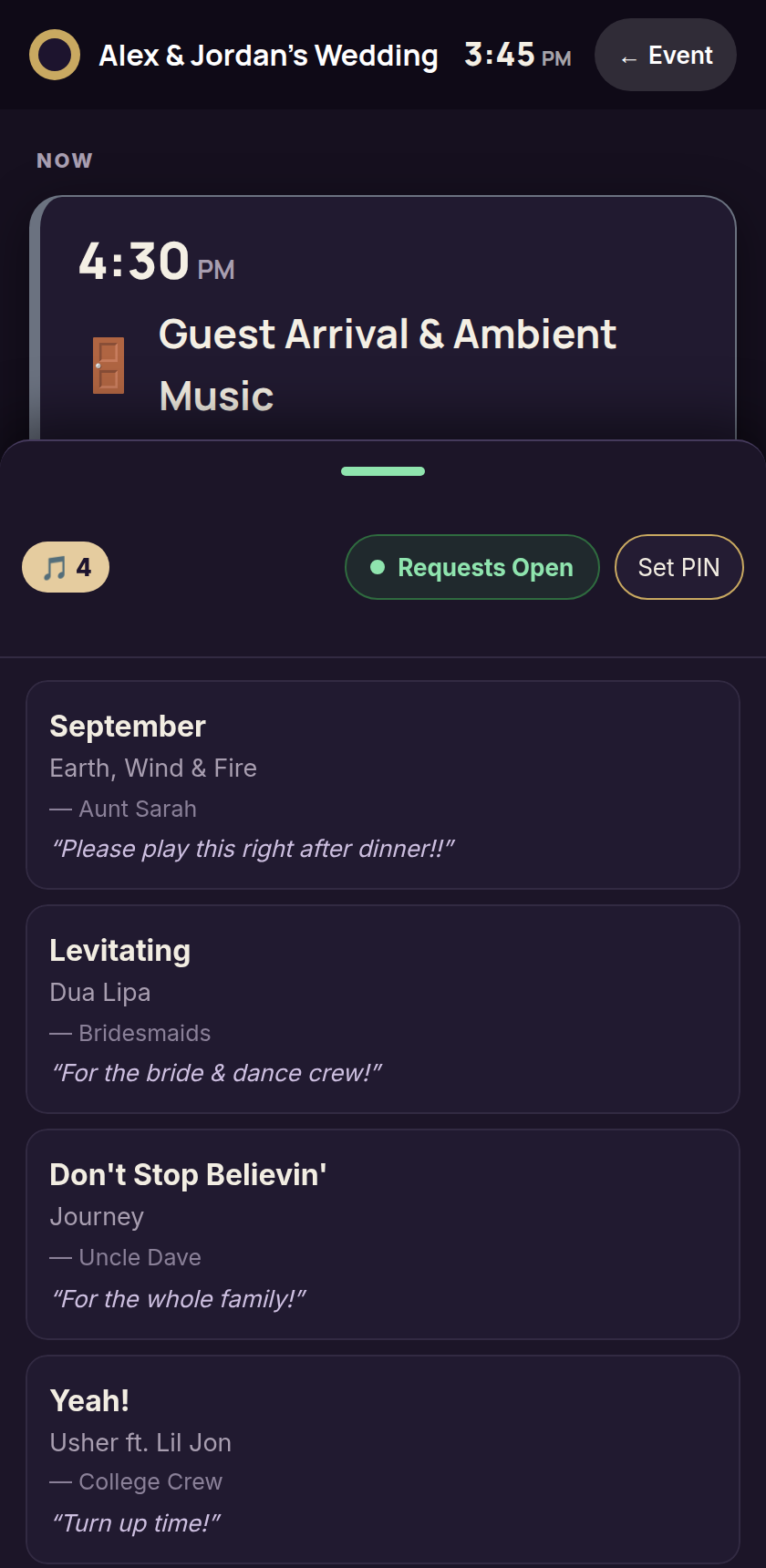
- 1:1 Gesture Drag: Drag the peek handle up to open the queue. It slides on hardware-accelerated transforms (
transform: translateY) tracking your finger 1:1. - Flick-to-Open: Fast flicking gestures open or close the sheet instantly using velocity detection (
performance.now()). - Touch Gesture Triage:
- Swipe Right: Accept / Mark Song as Played (removes from active queue).
- Swipe Left: Reject Song (removes with rejection note).
- Pointer Buttons: When viewed on desktop or laptop, explicit ✓ and ✕ buttons appear.
- Queue Controls: One-tap toggle to open or pause incoming requests, with a red/green status light on the drag handle.
- Non-Intrusive Toasts: When a new request arrives, a notification toast appears at the top of the screen with
pointer-events: none. It will never block or swallow your taps on "Complete" or "Delay". - Tablet Rail Mode: On iPads and tablets in landscape mode (
width >= 800pxandheight >= 700px), the request sheet locks into a permanent split-screen right-hand rail.
7. Planning Forms & WYSIWYG Form Builder
Accessed via /forms (DJ navigation bar).
GigState includes both ready-to-use System Forms and an intuitive drag-and-drop WYSIWYG Form Builder for creating custom questionnaires.
7.1 Built-in System Questionnaires
- Basic Event Information: Bride/groom details, wedding party count, venue addresses, day-of coordinator contacts.
- Reception Music Planning: Must-play songs, play-if-possible songs, do-not-play lists, cocktail/dinner genres, and special formal dances.
- Wedding Ceremony: Prelude music, processional tracks, bride entrance, recessional, and sound reinforcement needs.
- Corporate Event Questionnaire: Keynote speakers, AV requirements, brand guidelines, and presentation schedule.
- School Dance, Birthday, Graduation & Gala Forms: Tailored templates for private parties and institutional events.
7.2 The WYSIWYG Form Builder Canvas
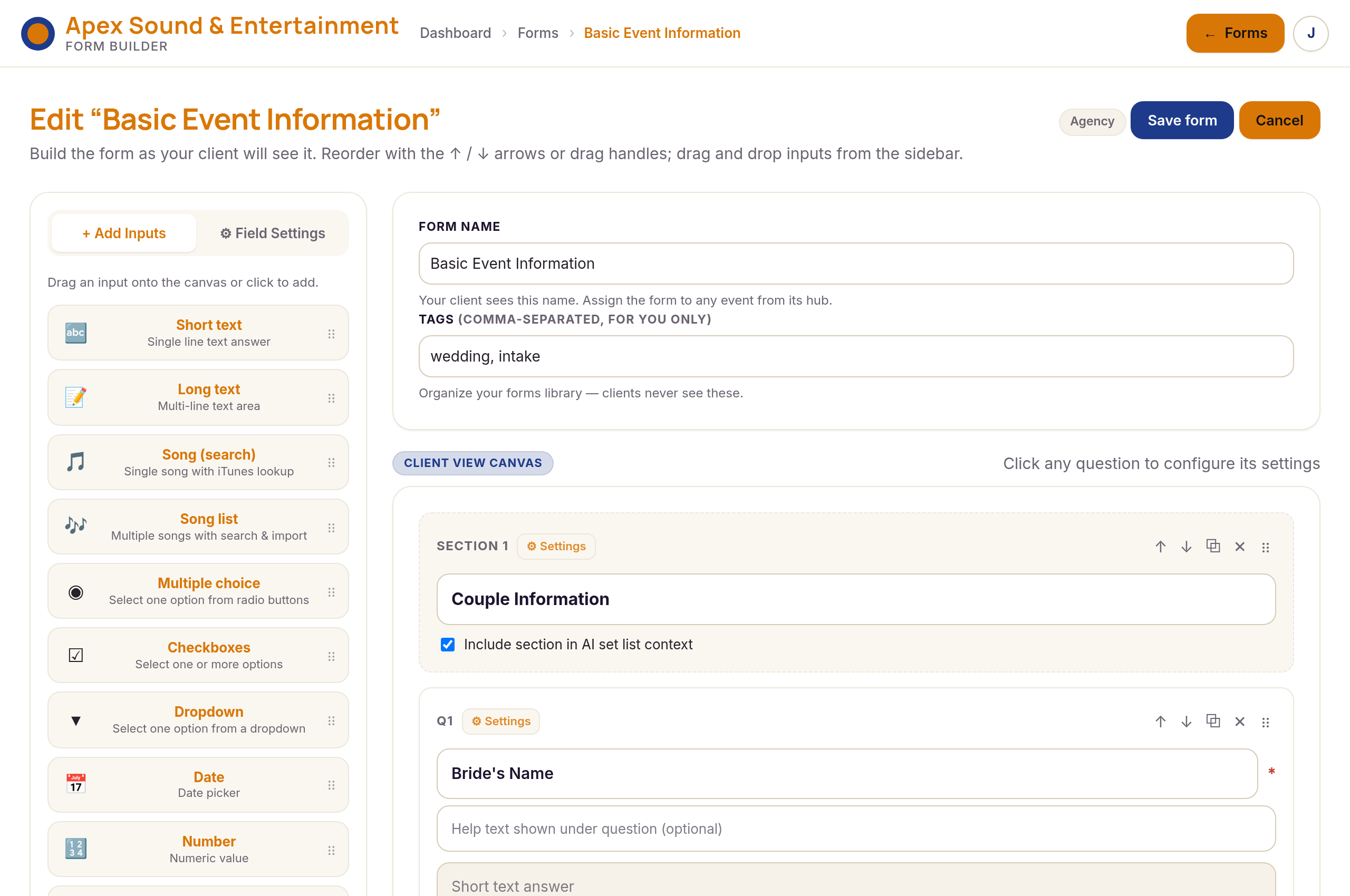
When creating or editing a form (/forms/new or /forms/:id/edit), the interface provides a dual-column layout:
- Left Column (Live Canvas): Displays the form exactly as the client will see it on their mobile device or desktop.
- Right Column (Input Palette & Inspector): Drag-and-drop field types or configure selected field rules.
7.3 Palette Components
- Text: Single-line text input for short answers (e.g., names, phone numbers).
- Textarea: Multi-line expandable text box for notes, addresses, and details.
- Dropdown (Select): Clean select dropdown menu.
- Multiple Choice (Radio Group): Single-selection radio buttons.
- Checkboxes: Multi-select options with custom checkbox lists.
- Star Rating / Number: 1-5 star rating or numeric input.
- Date & Time: Native calendar date picker and time selector.
- Section Divider: Visual separator heading to group questionnaire topics.
- Song Search: Single-song search with live iTunes autocomplete.
- Song List: Multi-song collection (ideal for Must Play or Do Not Play lists) with optional song limits (
max_songs).
7.4 Field Inspector & Logic Rules
- Required Toggle: Enforce answers before the client can mark the form completed.
- Answer Key: Internal variable identifier used when exporting answers or feeding the AI set list generator.
- Conditional Visibility ("Show Only If"):
- Dynamically display fields based on previous answers.
- Example: Show "Cake Cutting Song" only if "Will you have a cake cutting?" equals "Yes".
- Supports operators:
equals,not_equals,contains.
8. Guest Song Requests & DJ Digital Tipping
GigState turns crowd song requests into a seamless, modern mobile experience that keeps guests off your booth gear and puts tips directly into your pocket.
8.1 Two Access URLs
- Permanent Booth QR (
/r/dj/:dj_token): - Every DJ has a permanent personal QR code.
- Print it once and display it on your DJ booth sign, acrylic stand, or business cards.
- When scanned, it automatically routes guests to whatever event the DJ is performing today.
- If no event is currently active, it displays a polite "Not currently accepting requests" screen.
- Event-Specific Link (
/r/:event_token): - A dedicated link unique to a single event.
- Share it with the client in advance to include on wedding websites, table tents, or digital invitations.
8.2 The Guest Request Experience
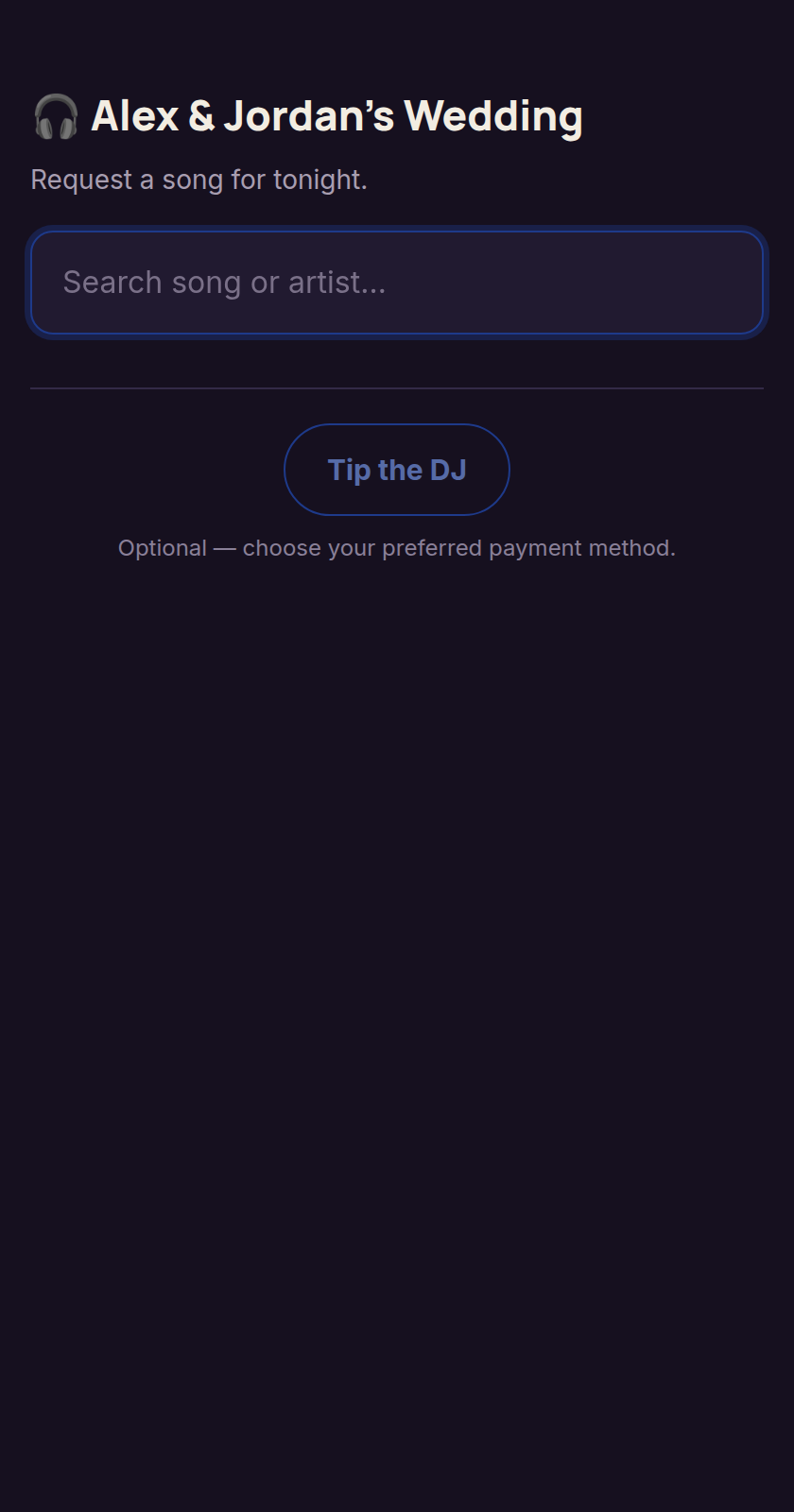
- Zero Login: Guests open the camera on their iPhone or Android, tap the link, and enter the portal immediately.
- Real-Time Music Search: Type a song title or artist to see instant suggestions powered by iTunes autocomplete.
- Dedications & Notes: Guests can enter their name and an optional note (e.g., "For Grandma's 80th birthday!").
- Rate-Limiting & Anti-Spam: Submissions are throttled per device hash to prevent malicious queue flooding.
- Optional PIN Gating: Require a 4-digit PIN (set in event settings) so only guests physically inside the venue can submit songs.
8.3 DJ Digital Tipping Integration
DJs can configure tip links in their profile (/settings?tab=profile):
- Supported Payment Services:
- Venmo:
https://venmo.com/YourUsername - Cash App:
https://cash.app/$YourCashtag - PayPal:
https://paypal.me/YourUsername - Stripe: Direct Stripe payment link or checkout URL
- Guest Tipping Modal:
- After submitting a request (or via the prominent "Tip the DJ" button), guests can select their preferred payment app.
- Tapping opens the payment app directly on their phone with your username pre-filled.
- 100% of tips go directly to the DJ — GigState takes 0% commission.
9. AI Set List Generator (Beta)
Accessed via /events/:id/setlist (DJ only).
Beta Feature: The AI Set List Generator is an experimental assistant that models harmonic key progression and client preferences from questionnaires and timeline moments. Always review and audition tracks before live performance.
The AI Set List Generator reads your event's timeline and client questionnaire responses to generate a custom, harmonically mixable set list in seconds.
Key Capabilities
- Context Extraction: Scans timeline milestones (e.g., Cocktail, Dinner, Dancing) and questionnaire answers (favorite artists, genres, must-play tracks, do-not-play bans).
- Curated Sections: Groups tracks into functional event sections with smooth energy progression.
- BPM & Camelot Harmonic Keys: Each song is annotated with BPM and Camelot Key (e.g.,
8A,11B) for seamless harmonic mixing. - Interactive Editing: Add tracks using iTunes search, reorder songs, or remove selections.
- Export Integration: Check Include in Drive Export to automatically include AI-generated tracks in your USB drive playlists.
10. Playlists & Hardware / Software Drive Export
Accessed via /events/:id/playlists (DJ only).
GigState offers two export methods: direct title-only downloads and direct-to-USB file matching.
10.1 Direct Title-Only Downloads
Download standard playlist files formatted for all major DJ platforms:
- CSV Spreadsheet: All songs categorized by list, scheduled start time, and moment.
- Extended M3U: Universal playlist compatible with VLC, iTunes, Winamp, and media players.
- Rekordbox XML (
DJ_PLAYLISTS.xml): Pioneer Rekordbox collection XML containing dedicated playlists for Must Play, Timeline Moments, Guest Requests, and AI Set Lists. - Traktor Pro NML (
collection.nml): Native Native Instruments Traktor Pro playlist format. - VirtualDJ Database XML (
database.xml): VirtualDJ native playlist and crate format. - Denon Engine DJ XML: Engine OS and Engine Desktop collection XML.
10.2 Direct-to-Drive Browser Export (USB Matching)
Using the browser's native File System Access API (Chrome, Edge, Opera), GigState can match event songs against the actual audio files on your USB flash drive or external hard drive:
[Connect USB] ➔ [Select Music Folder] ➔ [Local Tag Scan] ➔ [Confirm Matches] ➔ [Write Crates & M3Us]- Plug in your USB Drive: Connect your DJ music drive to your computer.
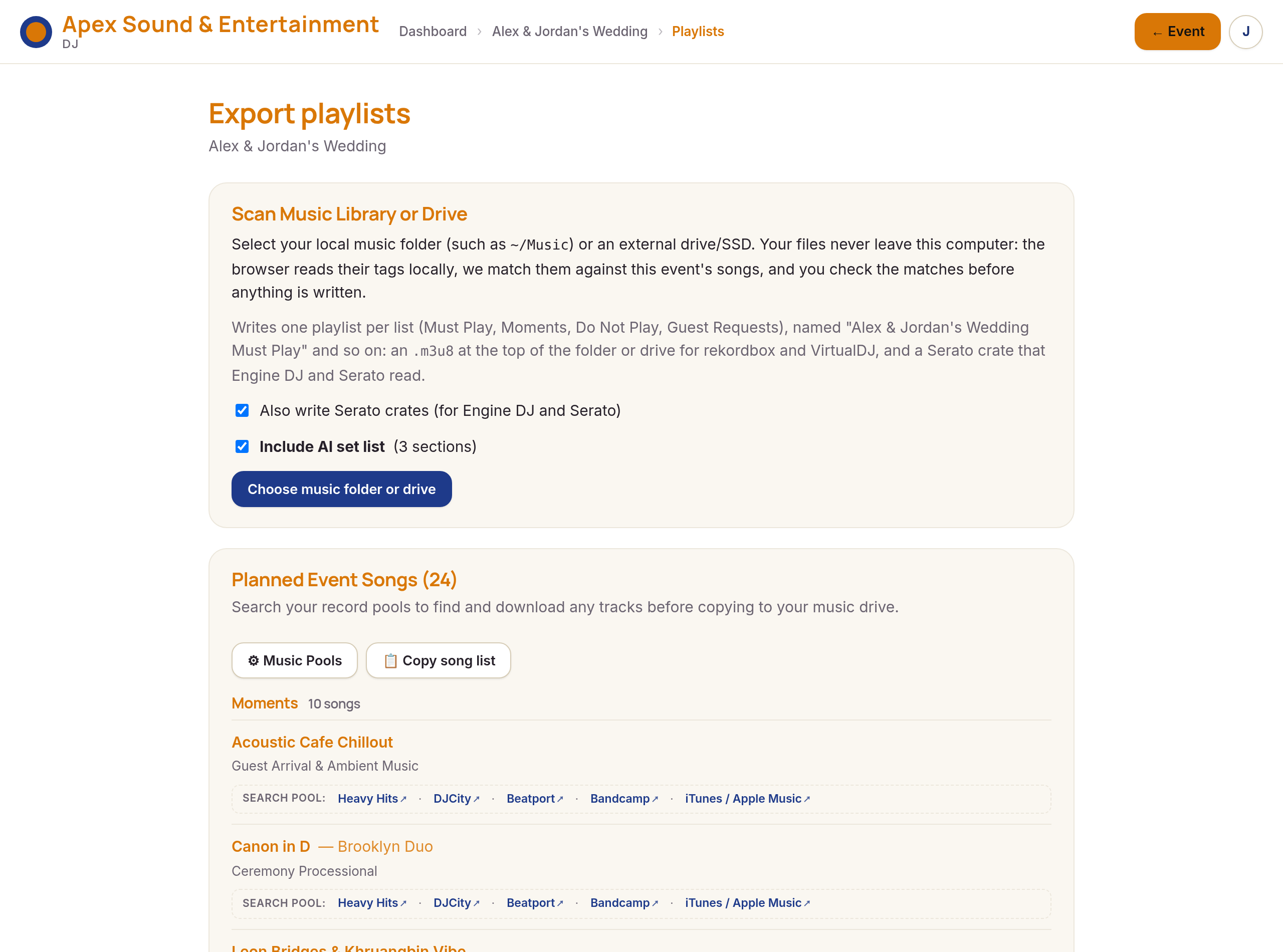
- Click "Export to a drive": Select the root music folder on your drive.
- Local Tag Scanning: Your browser locally scans your audio files (MP3, M4A, FLAC, WAV) and indexes their ID3 metadata. No music files are uploaded to any server — everything stays local.
- Fuzzy Matching: GigState matches event songs against your drive's library, highlighting exact matches and suggesting close alternatives.
- Record Pool Deep Search: Missing a track? Click any unmatched song to search your favorite music pools (BPM Supreme, ZipDJ, Crate Connect, Heavy Hits, etc.) with pre-filled search queries.
- Direct File Writing: Click Write Playlists. The browser writes:
<Event> <List>.m3u8playlists directly onto the drive root._Serato_/Subcrates/<Event> <List>.cratefiles directly into your Serato folder (recognized by Serato and Engine DJ).- Optional Rekordbox XML with absolute drive paths (
/Volumes/USBorE:).
11. Calendar & DJ Availability
Accessed via /calendar (DJ navigation bar).
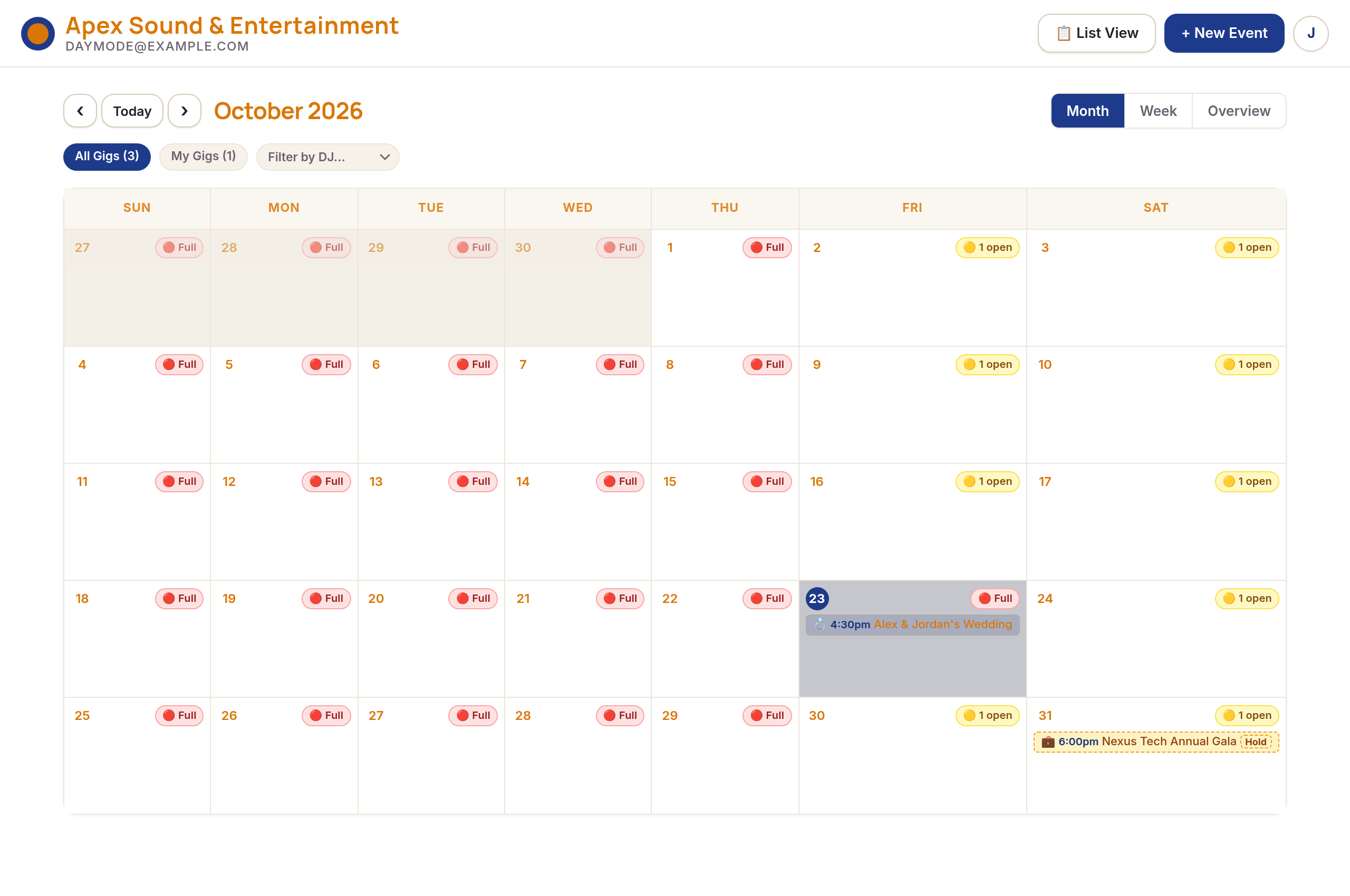
The Calendar gives solo DJs and agency managers full visibility into bookings, capacity, and scheduling conflicts.
11.1 Views & Filtering
- Views: Switch between Month, Week, and Overview (Agenda) views.
- Roster Filters: Agency owners can filter calendar events by individual DJ, unassigned gigs, or "My Gigs".
- Conflict Detection: The system alerts you if a DJ is assigned to multiple gigs on the same day or during overlapping hours.
11.2 Availability & Working Hours
Configure your working hours under /settings?tab=availability:
- Weekly Schedule: Set recurring availability for each day of the week (e.g., Fridays 5:00 PM - 2:00 AM, Saturdays 12:00 PM - 2:00 AM).
- Date Overrides: Block out specific dates for vacations, personal days, or blackout periods.
- Live iCal Calendar Feeds:
- Personal Calendar Feed: Subscribe via Google Calendar, Apple Calendar, or Microsoft Outlook (
/feeds/calendar/:token.ics). Updates automatically when new gigs are booked or rescheduled. - Agency Organization Feed: Organization-wide feed containing all agency gigs (
/feeds/org/:token.ics).
12. Multi-DJ Teams & Organization Management
For entertainment companies, multi-op DJ businesses, and booking agencies.
12.1 Team Roles & Permissions
Managed under /settings?tab=team:
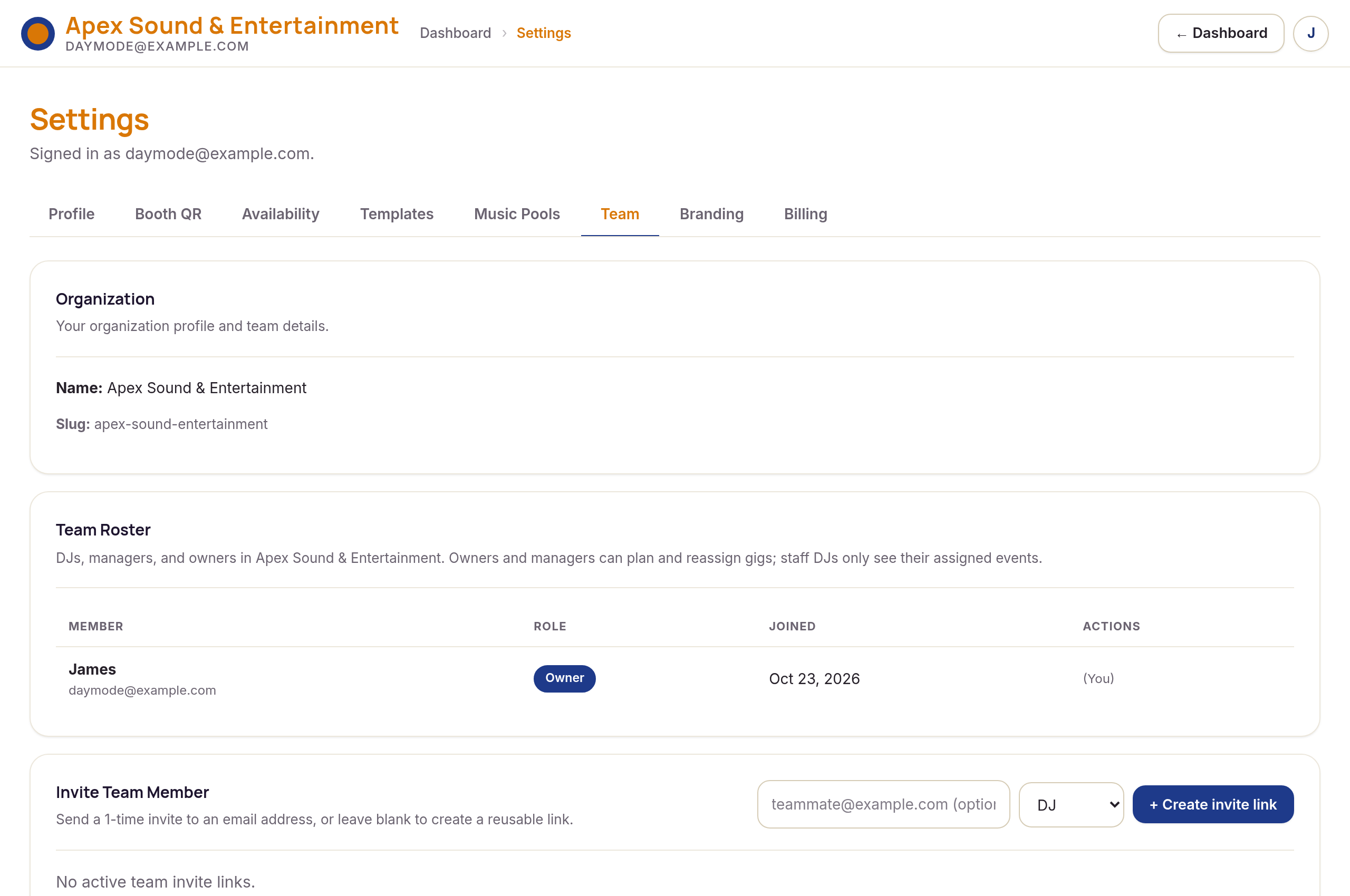
- Owner: Full administrative control over the company. Can manage billing, subscriptions, custom domains, white-label branding, invite team members, adjust roles, and access all gigs.
- Manager: Can assign performing DJs to events, create and edit agency-wide templates/forms, and view all agency gigs. Cannot modify billing or delete the organization.
- DJ (Performer): Can view and execute their assigned gigs, access Day Mode, set their personal availability, and create personal templates. Cannot view unassigned gigs or edit other DJs' timelines.
12.2 Assigning DJs to Gigs
- In the Event Hub (
/events/:id), managers can assign or reassign the performing DJ from a simple dropdown. - Conflict Warning: If the selected DJ already has a gig booked on that date, an instant conflict warning is displayed.
12.3 Shared Agency Templates & Questionnaires
- Agency owners and managers can publish organization-wide timeline templates and planning questionnaires.
- Staff DJs can assign these official company forms to their gigs, ensuring consistent service quality and branding across every event.
13. White-Label Branding & Custom Domains
Make GigState look and feel 100% like your company's proprietary software. Managed under /settings?tab=branding.
13.1 Brand Identity & Colors
- Company Name & Logo: Upload your high-resolution logo (
.png,.svg,.webp). Replaces standard GigState branding in headers, portals, and print sheets. - Brand & Accent Colors: Enter your company's primary and accent hex colors.
- Accessible Design System Derivation (
TimelineWeb.Brand.theme_css/1): - GigState dynamically generates a contrast-safe color palette (
--gold,--gold-strong,--gold-tint,--gold-text,--ink,--ink-soft). - Strict mathematical contrast calculations guarantee full compliance with WCAG AA accessibility guidelines (contrast ratio >= 4.5:1) across all light surfaces.
13.2 Point-and-Click Theme Customizer
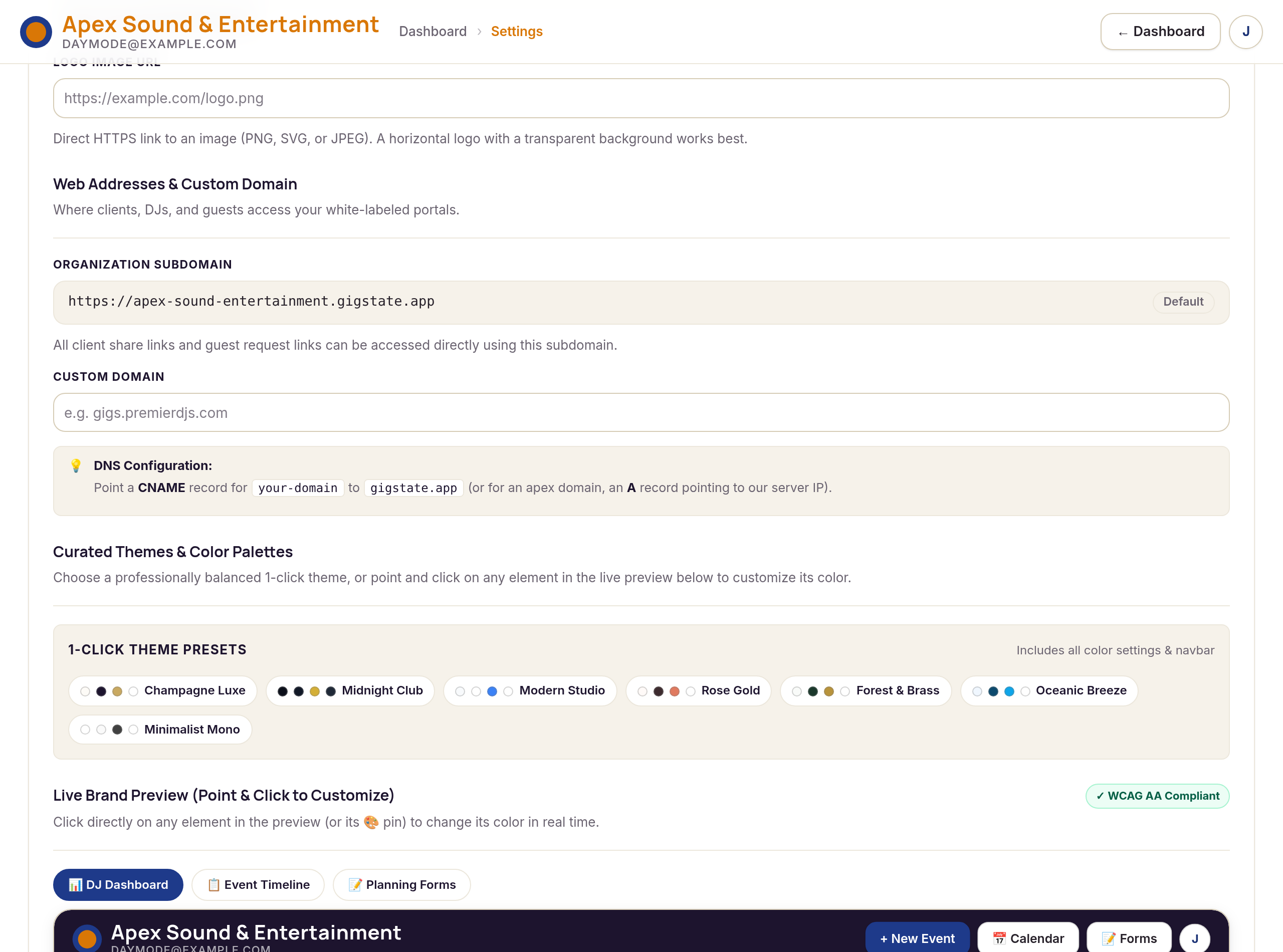
- Authentic Scaled Preview: Inspect a real, functional preview of the Dashboard, Event Editor, and Client Forms rendered inside a sandboxed frame.
- Point-and-Click Picking: Click on any element (buttons, headers, cards) in the preview to select its theme token and open an interactive color picker.
13.3 Subdomains & Custom Domains (Auto-Domain)
- Subdomain Routing: Included on Pro and Multi-Op plans. Access your portal at
<your-agency>.gigstate.app. - Custom Domains (e.g.,
portal.yourcompany.com): - Add a
CNAMErecord in your DNS provider (Cloudflare, GoDaddy, Namecheap) pointingportal.yourcompany.comtogigstate.app. - Enter your domain under
/settings?tab=brandingand click Check & Activate. - The system validates DNS resolution before contacting the automated Traefik certificate engine.
- Once verified, an automated Traefik router and Let's Encrypt SSL certificate are provisioned automatically. All client links, vendor links, and DJ dashboards will now answer securely on your own domain!
14. Subscriptions, Billing & Stripe Integration
Managed under /settings?tab=billing.
14.1 Plan Tiers
- Solo: Designed for single mobile DJs. 1 seat limit, core timeline editor, offline Day Mode, client forms, and playlist exports. Standard branding.
- Pro: Solo DJ with full white-label branding, custom logo, custom theme colors, and subdomain routing.
- Multi-Op: Multi-DJ businesses. Includes multiple DJ seats, roster scheduling, gig assignment, agency templates, and automated custom domains with SSL.
- Agency: Large entertainment agencies with high-volume seat allocations and enterprise priority support.
14.2 Self-Service Billing Management
- Stripe Customer Portal: Click Manage Subscription to open the secure Stripe portal. Update credit card details, switch billing intervals (monthly/annual), or view past receipts.
- Account Credit Ledger: Platform admins can grant credit balances to your account. Credits automatically offset upcoming renewal fees before any charge touches your credit card.
- Graceful Suspension: If a payment fails, your account enters a suspended state. You can still log in and access
/settings?tab=billingto update your payment method and instantly restore full access.
15. Print Sheets & PDF Runsheets
Accessed via /events/:id/print, /c/:token/print, or /v/:token/print.
GigState features dedicated print stylesheets designed specifically for standard Letter and A4 paper:
- Clean Typography: High-contrast black-on-white text optimized for ink and laser printers.
- Page Break Budgeting: Prevents awkward page breaks in the middle of ceremony or speech items.
- Role-Based Print Views:
- DJ Print Sheet: Contains full run of show, item durations, public descriptions, private DJ notes, announcement scripts, and questionnaire summaries.
- Vendor Print Sheet: Contains event schedule, start/end times, and public descriptions. Private DJ notes, MC scripts, and questionnaire answers are completely omitted.
16. Troubleshooting & Frequently Asked Questions
Day Mode & Touch Controls
- Q: Can I run Day Mode without internet at the venue?
- A: Yes! Open Day Mode (
/events/:id/day) while connected to the internet before heading to the venue. The application shell and event data are cached in IndexedDB. Once loaded, you can disconnect entirely and run the event offline. - Q: What happens if I make changes while offline and then reconnect?
- A: When internet connectivity resumes, Day Mode's background sync engine transmits queued operations (
/api/day/events/:id/ops) and syncs with the server. - Q: My screen keeps turning off during gigs.
- A: Day Mode automatically requests a Screen Wake Lock. Ensure your mobile browser (Safari on iOS or Chrome on Android) has permissions enabled and is not in extreme battery-saver mode.
USB Drive Export & Music Matching
- Q: Why does the browser ask for permission to view files?
- A: The File System Access API requires explicit permission to scan your USB drive's audio tags. GigState only reads file names and ID3 tags locally; it never uploads your audio files to any server.
- Q: Which DJ software is supported?
- A: Pioneer Rekordbox (
DJ_PLAYLISTS.xml), Native Instruments Traktor Pro (collection.nml), VirtualDJ (database.xml), Denon Engine DJ, Serato DJ (_Serato_/Subcrates/.crate), and universal M3U/CSV.*
Share Links & Client Access
- Q: My client says their share link says "Unavailable".
- A: Share links automatically expire the day after the event date. If the event was postponed or rescheduled, simply update the event date in the Event Hub; this revives the link immediately. Alternatively, open the Share modal and generate a fresh token.
- Q: Can my clients see my private notes?
- A: No. Private notes are strictly gated to authenticated DJs and organization owners. Clients and vendors can never see private notes in the editor, Day Mode, or printouts.
GigState — Professional Event Planning & Live Execution for DJs. Documentation Version: 1.0 • October 2026