White-Label Branding & Domains
WCAG AA contrast tokens, live iframe editor, and automated Traefik/SSL domains.
White-Label Branding, Custom Domains & Live Theme Editor
Present a completely branded, premium experience to your clients. With GigState's white-labeling capabilities, every client portal (/c/:token), vendor link (/v/:token), guest request page (/r/:token), and print sheet reflects your company's logo, colors, and custom domain.
Managed under /settings?tab=branding (available on Pro, Multi-Op, and Agency tiers).
1. Brand Identity & Contrast-Safe Theme Derivation
GigState replaces generic software styling with your company's authentic visual identity:
1.1 Uploading Logo & Colors
- Navigate to
/settings?tab=branding. - Company Logo: Provide your logo image URL (PNG, SVG, WebP). It replaces the standard brand mark across all headers, guest portals, and PDF runsheets.
- Primary Brand Color & Accent Color: Enter your hex colors (e.g.,
#1E3A8Afor Royal Blue,#D97706for Warm Amber).
1.2 Automated WCAG AA Accessible Token Derivation
A major problem with DIY software theming is poor contrast: DJs pick a light brand color, and suddenly text on buttons and cards becomes impossible to read.
GigState solves this mathematically using TimelineWeb.Brand.theme_css/1:
- It analyzes your chosen brand and accent hex codes against standard light surfaces.
- It dynamically calculates high-contrast derived tokens:
--gold: Primary accent fill for buttons, pills, and active indicators.--gold-strong: Darker shade used on hover states.--gold-tint&--gold-wash: Ultra-light background tints for selected cards and active table rows.--gold-text: A contrast-boosted shade guaranteed to meet WCAG AA standards (>= 4.5:1 contrast ratio) whenever your brand color is rendered as text.--ink&--ink-soft: Balanced typography shades ensuring crisp readability.
2. The Point-and-Click Theme Customizer
Instead of guessing hex codes, GigState provides an interactive live preview:
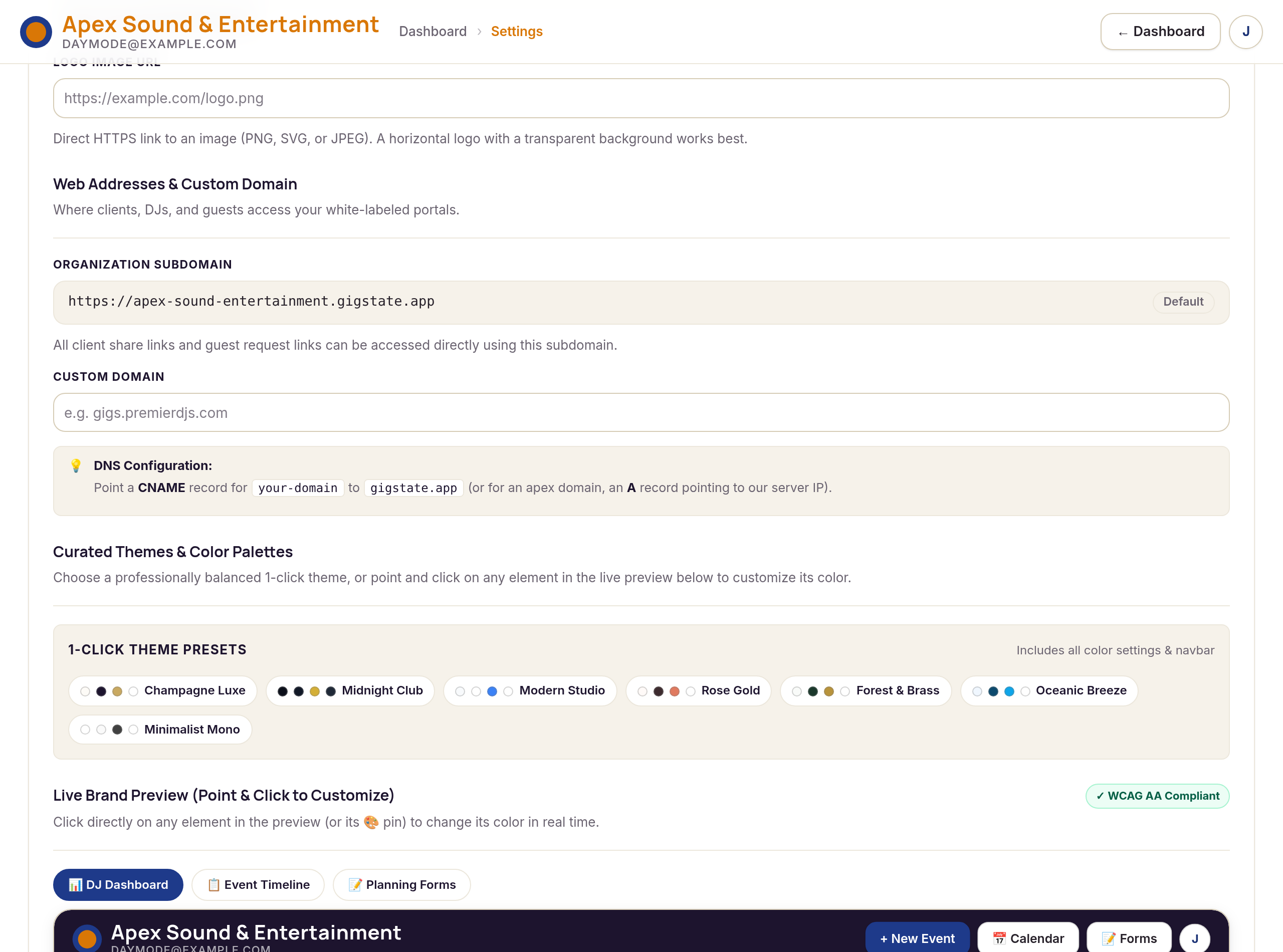
2.1 Authentic LiveView Preview
- The preview renders inside a scaled
<iframe>using real application LiveViews (DashboardLive,EventEditorLive,FormLive) mounted over sample data (Timeline.BrandPreview). - Read-Only Safety Guard (
BrandPreviewHook): The preview is completely sandboxed. Clicks and interactions cannot mutate any production database records. - Dynamic Theme Swap: Adjusting color pickers immediately computes new CSS via
POST /settings/branding/theme_cssand hot-swaps the style tag inside the frame in real time.
2.2 Point-and-Click Inspector
- Simply click on any element (e.g., the primary action button, a card header, or a status badge) inside the preview window.
- The inspector highlights the matching design token and positions an interactive color picker directly next to the element, making customization intuitive and effortless.
3. Subdomain Routing (<agency>.gigstate.app)
Included on Pro and Multi-Op plans:
- Choose an organization slug (e.g.,
premierdjs). - Your team and clients can access the application directly at
https://premierdjs.gigstate.app. - All share links, emails, and portals automatically format using your branded subdomain.
4. Automated Dedicated Custom Domains (Auto-Domain)
Available on Multi-Op and Agency tiers, you can host GigState entirely under your company's own custom domain (e.g., gigs.premierdjs.com or clients.soundwaveevents.com).
GigState handles SSL certificates and reverse-proxy routing automatically via its internal Auto-Domain service:
4.1 Step 1: Configure Your DNS
Log in to your domain registrar or DNS provider (Cloudflare, GoDaddy, Namecheap, Google Cloud DNS) and create a DNS record:
- Record Type:
CNAME - Name / Host:
gigs(or whatever subdomain you prefer) - Target / Value:
gigstate.app - (Or create an
Arecord pointing to the application's public IP address).
4.2 Step 2: Check & Activate in GigState
- In
/settings?tab=branding, enter your domain (e.g.,gigs.premierdjs.com). - Click Check & Activate.
- Safety Verification: GigState's background service performs an immediate DNS lookup. It validates that the CNAME correctly resolves to our servers before initiating Let's Encrypt SSL issuance.
- > Note: Let's Encrypt enforces strict rate limits (maximum 5 failed attempts per domain per hour). GigState protects your domain by refusing to request an SSL certificate until DNS verification succeeds.
- Once verified, the Traefik router is created, Let's Encrypt issues an automatic SSL certificate, and your custom domain status switches to Active (Green).
- All client links, vendor portals, and DJ dashboards will now answer securely on your branded domain with a valid HTTPS padlock!