Calendar, Scheduling & Availability
Booking calendar, conflict detection, recurring availability, and iCal feeds.
Calendar, Scheduling & DJ Availability
GigState includes a comprehensive scheduling system designed for both solo performers tracking their upcoming gigs and agency managers coordinating multiple DJs across simultaneous weekend events.
1. The Booking Calendar (/calendar)
Accessed from the top navigation bar, the Calendar provides full visibility into your schedule:
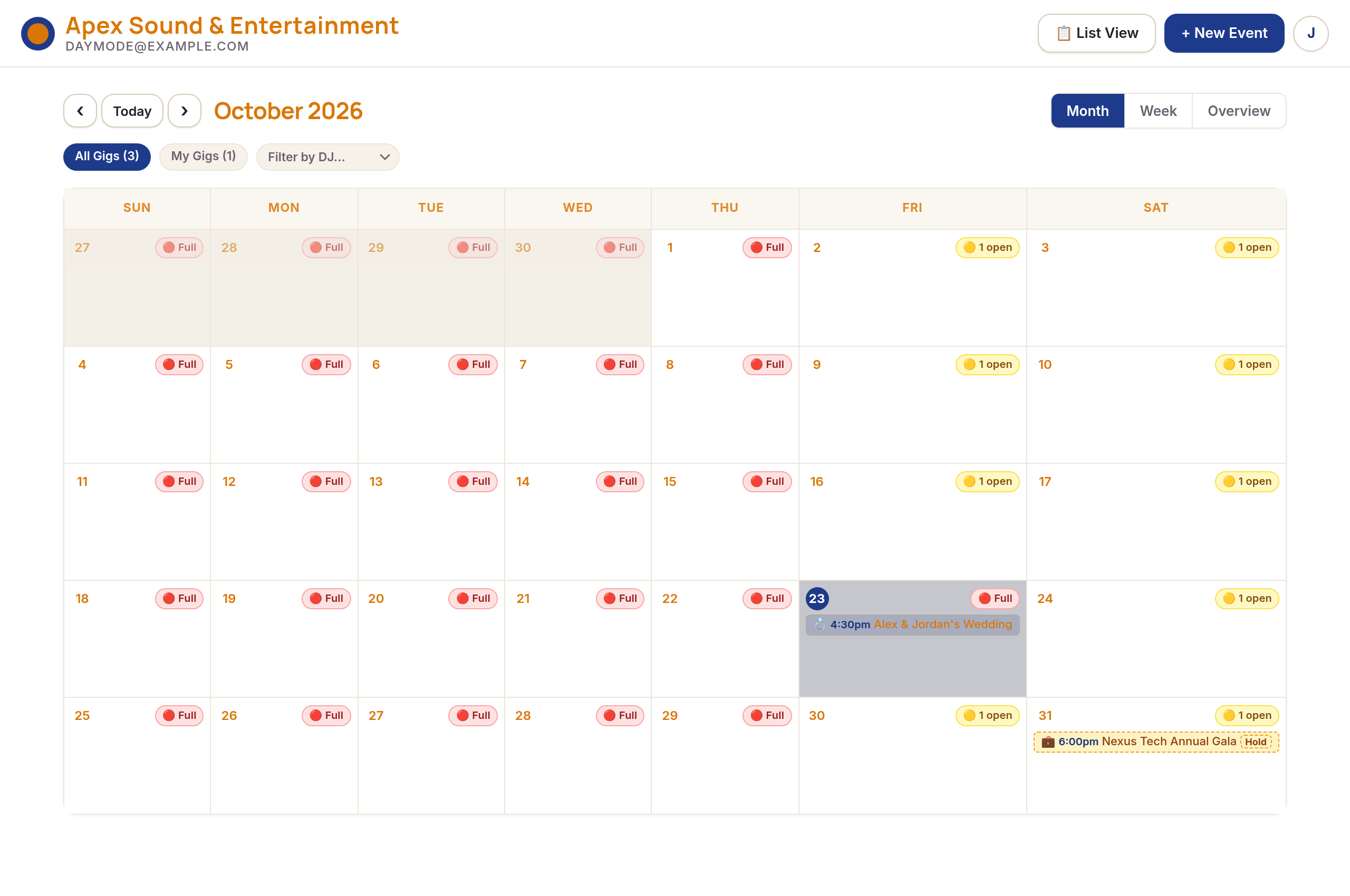
1.1 Calendar Views
- Month View: Bird's-eye view of your entire month. Days with booked gigs display color-coded event cards.
- Week View: Time-blocked view showing exact hours, load-in times, and event runtimes across the week.
- Overview (Agenda) View: Chronological list of upcoming gigs with date, time, venue, and assigned DJ details.
1.2 Multi-DJ Roster Filters
For agency owners and managers:
- Filter by Roster: Filter the calendar to display gigs for a specific DJ.
- My Gigs: Quickly isolate only the events where you are the performing DJ.
- Unassigned Gigs: Identify upcoming bookings that do not yet have an assigned performer.
1.3 Automatic Conflict Detection
- If a manager attempts to assign a DJ who is already booked for another gig on the same date, GigState displays an instant Scheduling Conflict Alert.
- Prevents embarrassing double-bookings before they happen.
2. Managing DJ Availability
Set your working hours and block off personal time under /settings?tab=availability:
2.1 Weekly Recurring Availability
Define your standard operating hours for each day of the week:
- Example:
- Fridays:
17:00 - 02:00(5:00 PM to 2:00 AM) - Saturdays:
12:00 - 02:00(12:00 PM to 2:00 AM) - Sundays:
12:00 - 22:00(12:00 PM to 10:00 PM) - Mon–Thu: Marked as Unavailable.
- Helps agency managers know who is available before assigning gigs.
2.2 Date Overrides (Blackouts & Vacations)
When you have personal commitments, family events, or vacations:
- In
/settings?tab=availability, scroll to Date Overrides. - Click + Add Override.
- Select the date and status:
- Unavailable / Blackout: Blocks the date from being assigned.
- Custom Hours: Override standard hours for a holiday weekend.
- The calendar and assignment dropdowns immediately reflect your blackout status.
3. Live iCal Calendar Feeds
Never miss a gig: subscribe to your GigState schedule directly from your phone's native calendar app.
3.1 Two Available Feeds
- Personal Calendar Feed (
/feeds/calendar/:token.ics): - Contains only the gigs assigned to you personally.
- Includes event title, venue address, start time, end time, and a direct link to the Event Hub.
- Organization Agency Feed (
/feeds/org/:token.ics): - Available to agency owners and managers.
- Contains all events across the entire company roster.
3.2 How to Subscribe
Apple Calendar (iPhone / Mac)
- Copy your personal feed URL from
/settings?tab=availability. - On your iPhone, go to Settings ➔ Calendar ➔ Accounts ➔ Add Account ➔ Other ➔ Add Subscribed Calendar.
- Paste the URL and tap Save.
- All upcoming gigs appear seamlessly in your iOS Calendar, complete with venue addresses for Apple Maps navigation!
Google Calendar (Android / Desktop)
- Open Google Calendar on your computer.
- On the left sidebar next to Other calendars, click the + icon and select From URL.
- Paste your GigState feed URL and click Add calendar.
Microsoft Outlook
- In Outlook, go to the Calendar view.
- Click Add Calendar ➔ Subscribe from web.
- Paste the URL, name the calendar (e.g., "GigState Schedule"), and click Import.
3.3 Rotating Your Feed Token
If you ever suspect your feed URL was shared publicly:
- In
/settings?tab=availability, click Rotate Feed Token. - This immediately invalidates the old URL and generates a fresh token. Simply update the URL in your calendar app.